
Meal choice place card
Place Card Template with Meal Choices
Download a printable place card template with fields for guest name, table assignment, and meal choice. Includes spreadsheet setup, Word guidance, and print settings.
PDF download. No Word file or account is required.
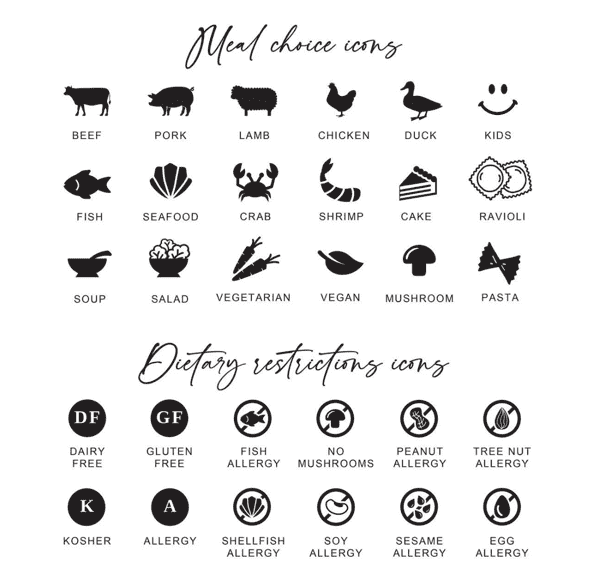
- Finished size
- 3.5 x 2 in
- Card style
- Flat card
- Sheet layout
- 6 cards
- Paper
- US Letter, landscape
Template overview
What this printable template is designed to do
This layout keeps the three details event staff need in one place: the guest name, table assignment, and selected meal. It is designed for wedding receptions, galas, formal dinners, and catered events where servers need to identify an order without interrupting the guest.
The direct download is a print-stable PDF with six cards on one Letter sheet. For a personalized batch, open the preloaded online design and import separate Name, Table, Meal, and Dietary columns from Excel, CSV, or Google Sheets.
Catering example
Use four clear fields for catering
One spreadsheet row becomes one place card. Keep each value in its own column so the editor can map it reliably.
Open the preloaded meal-choice design- Name
- Jordan Lee
- Table
- Table 8
- Meal
- Vegetarian
- Dietary
- Nut allergy
Caterer key: Agree on a short caterer key before printing—for example B = beef, F = fish, V = vegetarian—and print the readable meal label as well as any symbol or color.
Privacy boundary: Print only service-critical dietary information. Keep diagnoses, medical history, contact details, and private planning notes off the card; share those through the caterer’s secure process instead.
Recommended uses
When to choose this place card layout
Plated wedding dinners
Give catering staff a readable meal indicator while keeping the guest name visually dominant.
Multiple menu options
Use consistent labels such as Beef, Fish, Vegetarian, or Kids instead of private color codes.
Assigned tables
Include the table number or table name below the guest name so one card supports both seating and service.
Spreadsheet guest lists
Generate one card per row without repeatedly copying names and meal selections into a document.
Make meal information easy for staff to scan
Keep the guest name in the largest type, then place the table and meal fields on a clear secondary line. If the venue uses abbreviations, confirm them with the catering manager before printing. Short, consistent words are easier to recognize quickly than decorative labels.
Icons and colors can support the meal label, but they should not be the only signal. Printed text remains readable in dim reception lighting and avoids confusion for new staff members who did not receive a color key.
Set up the same size in Microsoft Word
For a small guest list, create a fixed-size table in Microsoft Word and put the name on the first line with the table and meal fields beneath it. Disable AutoFit so long names do not change the card dimensions.
For a large list, Word mail merge can work, but the source spreadsheet must have one guest per row and stable column names. The online editor uses the same data structure and is usually faster when meal choices or last-minute seating changes are involved.
Print the template at the correct size
PDF preserves the sheet geometry, but the print dialog can still resize it. Use this sequence before committing final cardstock.
- Step 1
Test the longest record
Preview the longest guest name and meal label before producing the full set.
- Step 2
Print at actual size
Choose 100% or Actual Size and disable Fit to Page or Shrink Oversized Pages.
- Step 3
Check readability
View one test card at table distance and under lighting similar to the venue.
- Step 4
Print and cut the batch
Use printer-supported cardstock and a paper trimmer for consistent edges.
Questions about this template
What fields should a meal-choice place card include?
Use the guest name, table number or table name, and a short meal label. Add a dietary note only when the venue has asked for it.
Can I import meal choices from Excel?
Yes. Keep one guest per row and use separate Name, Table, Meal, and Dietary columns before opening the preloaded design in the online editor.
Should meal choices use text, icons, or colors?
Readable text is the safest primary signal. Icons or colors can be added as secondary cues after confirming the system with the caterer.
Related templates
Compare another printable layout
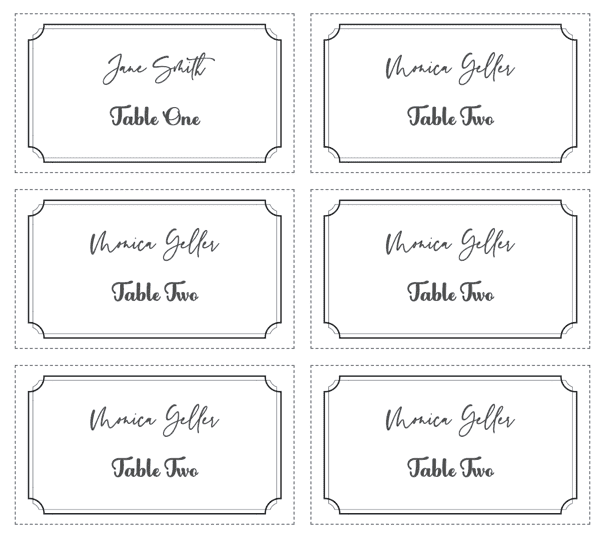
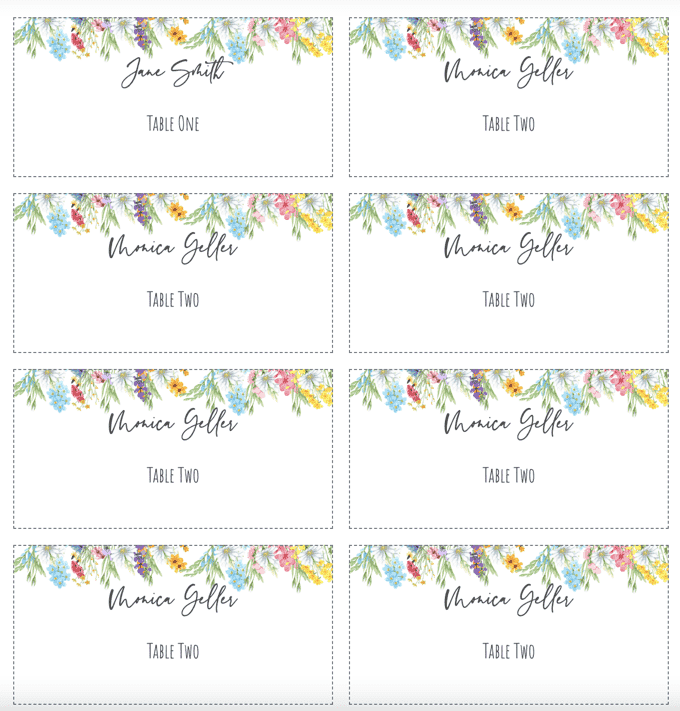
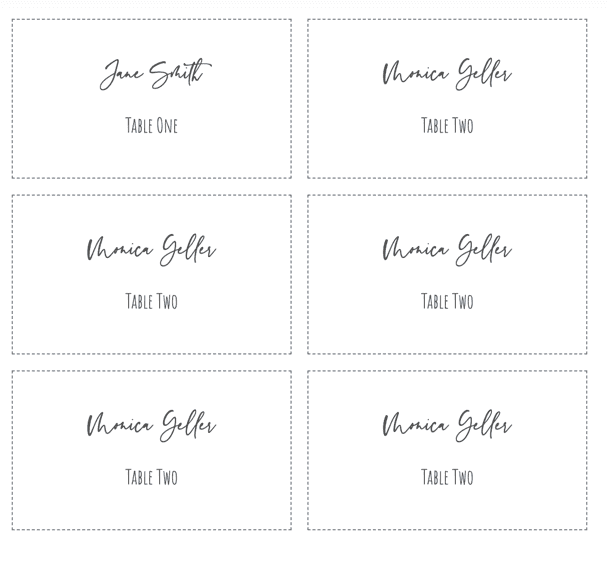
Personalize every guest name from a spreadsheet
Use the matching design, import Excel, CSV, or Google Sheets, and export the complete set as one print-ready PDF.
← Browse all place card templates