

Microsoft Word is installed on nearly every office and home computer, which makes it one of the first places people look for place card templates. And for good reason — Word handles text beautifully, most people already know how to use it, and the files are easy to share and reprint.
This guide covers the best blank place card templates for Word, how to set them up correctly, the difference between flat and foldable styles, and when it makes sense to switch to a dedicated spreadsheet-to-PDF workflow.
Why People Use Word for Place Cards
Word has a few genuine advantages for place cards:
- Familiarity: Most people can navigate Word without a learning curve
- Control over typography: Fine-grained control over fonts, spacing, and sizing
- Printer compatibility: Word plays well with most home printers
- Avery templates built in: Word includes built-in templates for Avery label sheets, including place card formats
- Free: Already installed on most computers
The main limitation? Word isn't designed for batch printing variable data. If you have 80 guests with different names, you'll either type each name individually across many pages, or attempt Word's mail merge — which is genuinely complex for most users. More on that below.
Understanding Place Card Styles in Word
Before downloading a template, decide which style you need:
Flat Place Cards
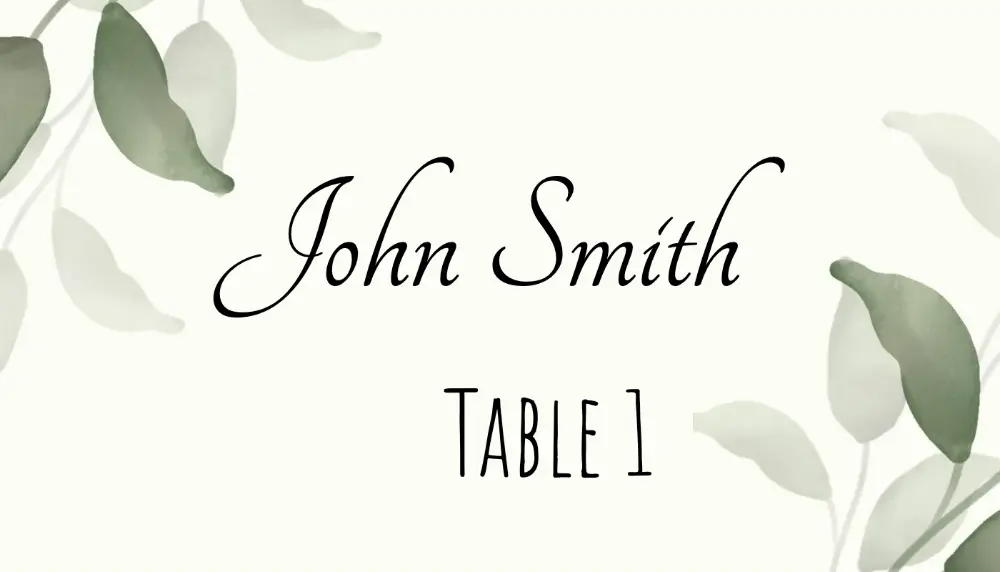
A flat place card lays on the table. It can rest in a card holder, lean against a centerpiece, or be placed at the plate. Flat cards are commonly printed 6 per sheet at 3.5″ × 2″ each on letter-size printable stock.
Best for: Modern settings, minimalist table decor, card holders
Tent Card (Foldable)
A tent card is printed and then folded to stand up on the table. The design prints on a single flat sheet, then you score and fold it. The finished size is typically 3.5″ × 2″ when folded (pre-fold sheet: 3.5″ × 4″).
Best for: Traditional settings, buffet-style seating, anywhere the card needs to stand upright without a holder
For Avery tent card stock (Avery 5302), the layout has 4 tent cards per sheet — not 6. See the place card size guide for a complete comparison.
Large Tent Card
A larger foldable card (4.25″ × 2″ folded) is easier to read from a distance. Often used for corporate events, conference tables, or panel discussions.
The 10 Best Word-Compatible Place Card Templates
Here are 10 styles you can use directly in Microsoft Word or the Place Card Maker online tool:
1. Basic Blank Flat (6 per sheet)
A clean, empty 3.5″ × 2″ grid — 6 blank cards per page. The purest starting point. Add any font, border, or decoration you like in Word.
Open Basic Blank template online →
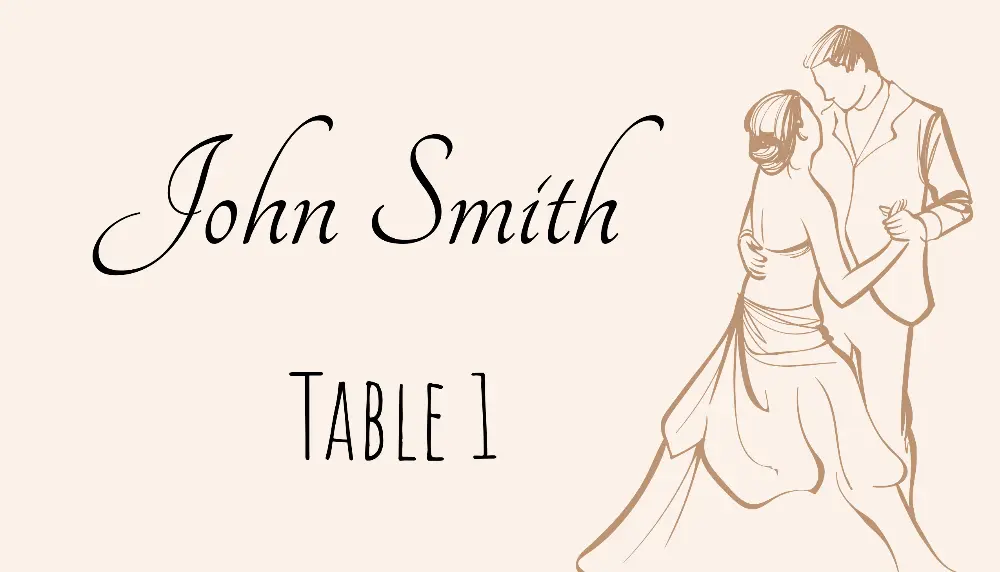
2. Tent Card Blank (4 per sheet)
Pre-scored fold line, two-sided layout (same design printed on both halves). Print and fold for a card that's readable from both sides of the table.
Open Tent Card Blank template online →
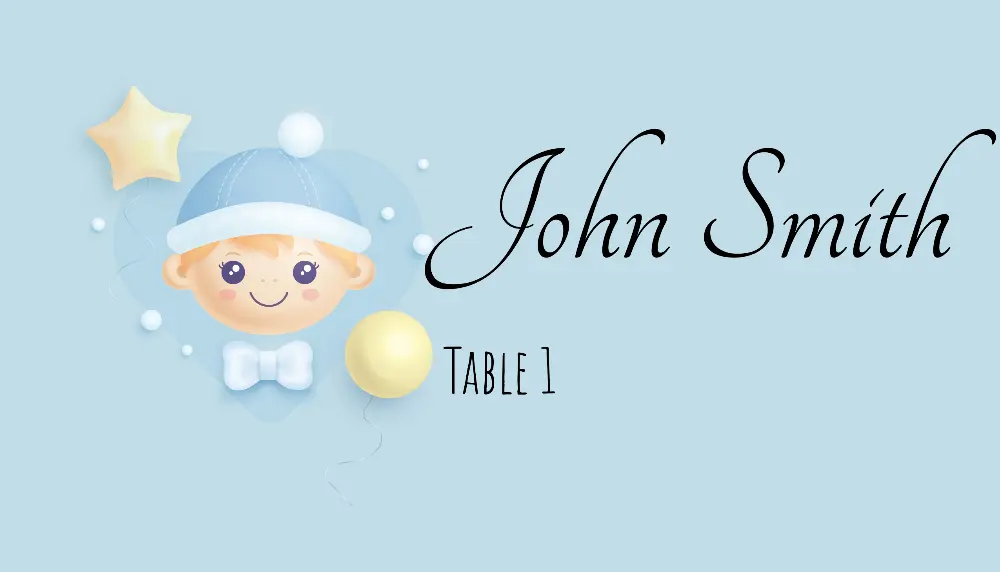
3. Elegant Script Border
Thin decorative border with a script-style name field. Works well in Word with any serif or script font. Classic wedding style.
Open Elegant Script Border template →
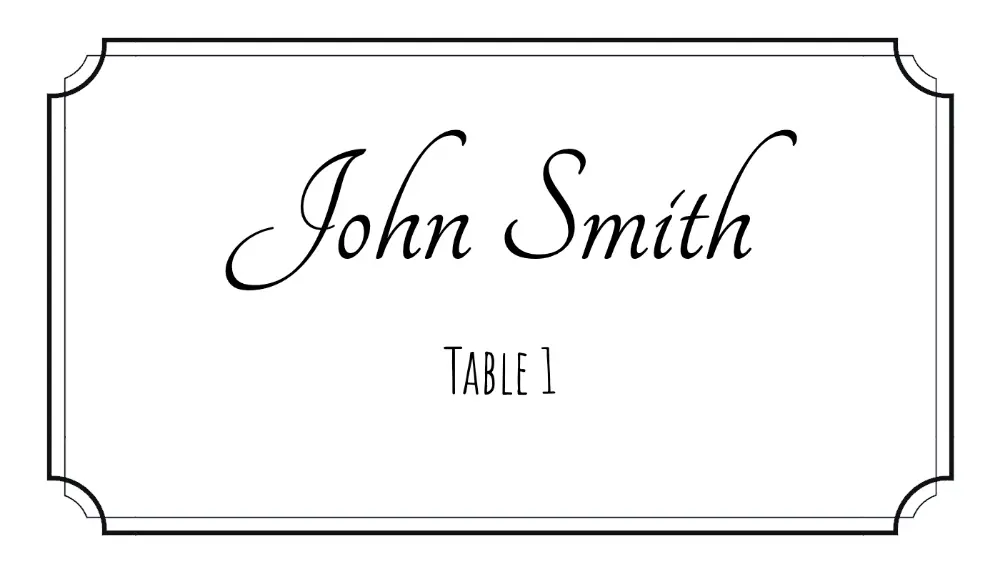
4. Simple Line Border
A single thin-line border, no other decoration. Understated and professional. Good for corporate dinners and formal business events.
Open Simple Line Border template →
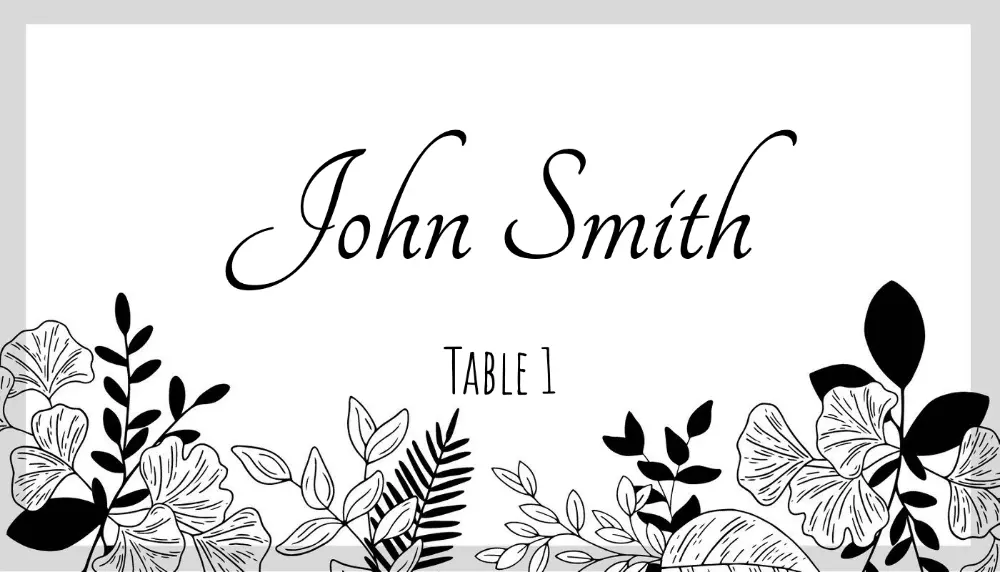
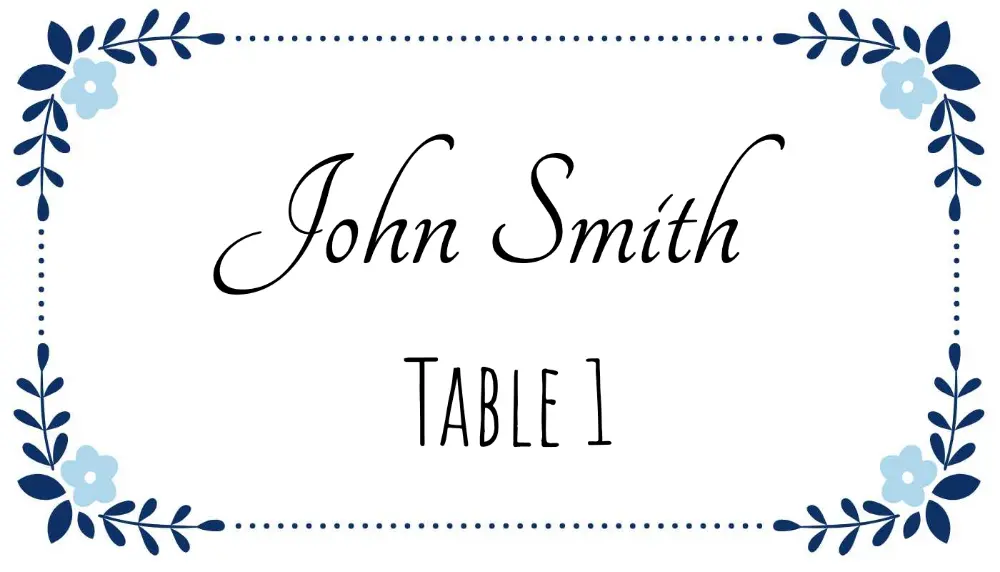
5. Floral Corner Accent
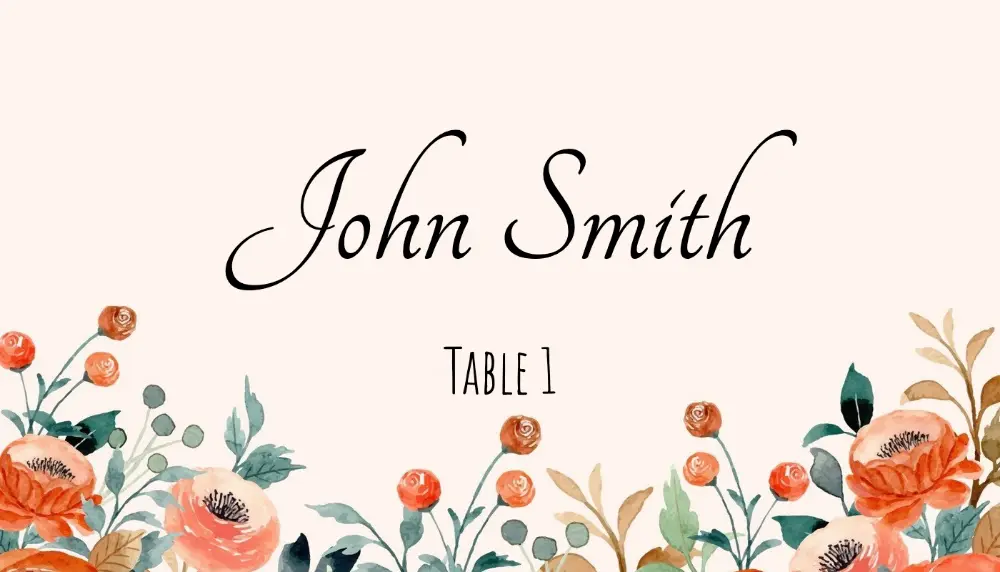
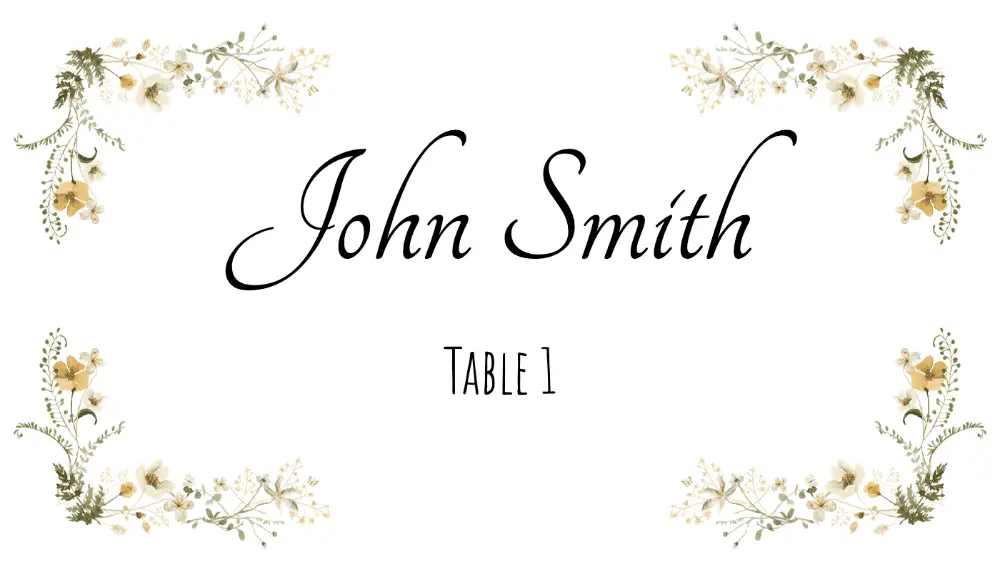
Corner floral decoration framing the guest name area. Pair with a handwriting-style font (like Dancing Script) for a garden party look. Works in Word as an embedded image or directly in the online maker.
Open Floral Corner Accent template →
6. Rustic Kraft Style
Warm brown background simulating kraft paper. Popular for outdoor weddings, barn receptions, and harvest dinners. In Word, replicate with a tan page background fill. Or use the online version for a pixel-perfect kraft look.
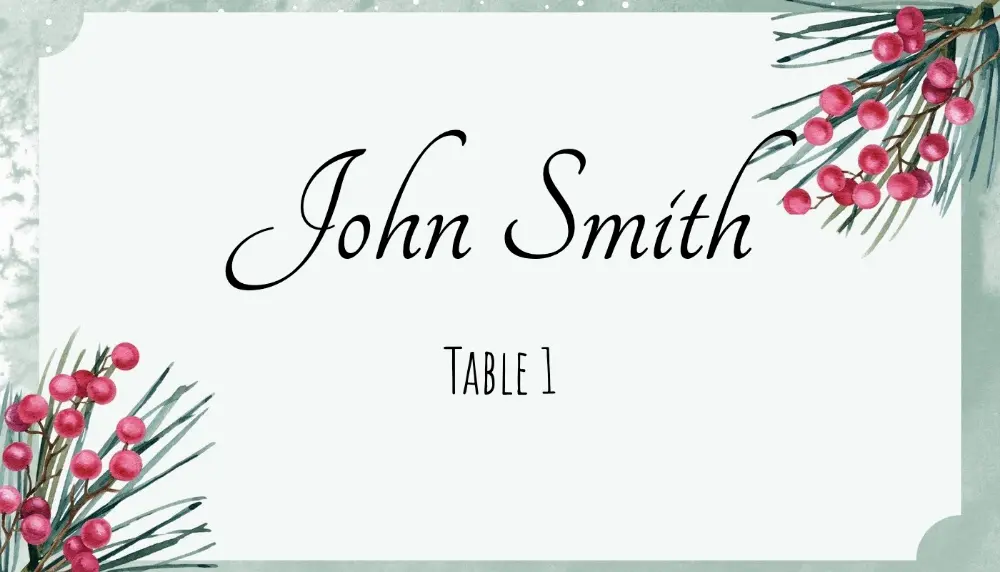
7. Modern Minimalist (Name Only)
Just the name, centered, in a clean sans-serif font. No decoration, no borders. Suitable for contemporary settings where less is more.
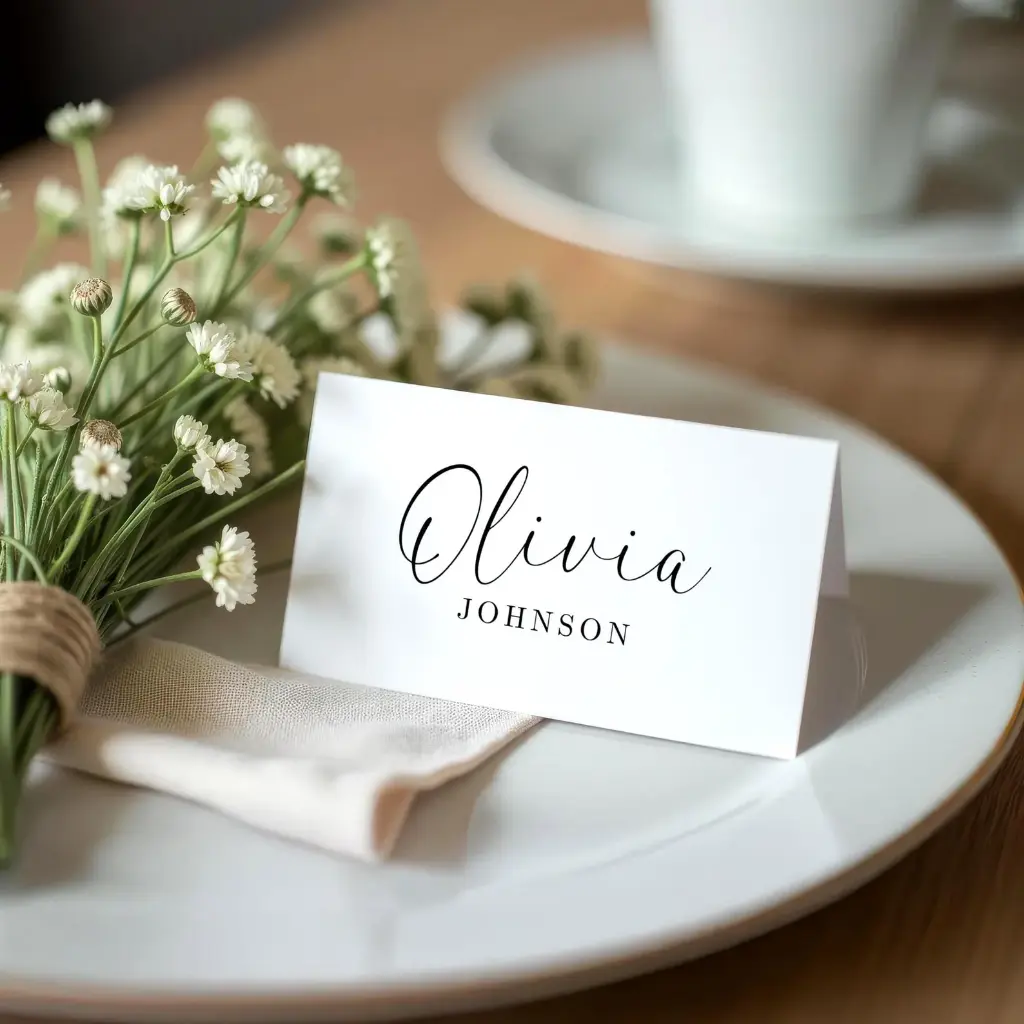
Open Modern Minimalist template →
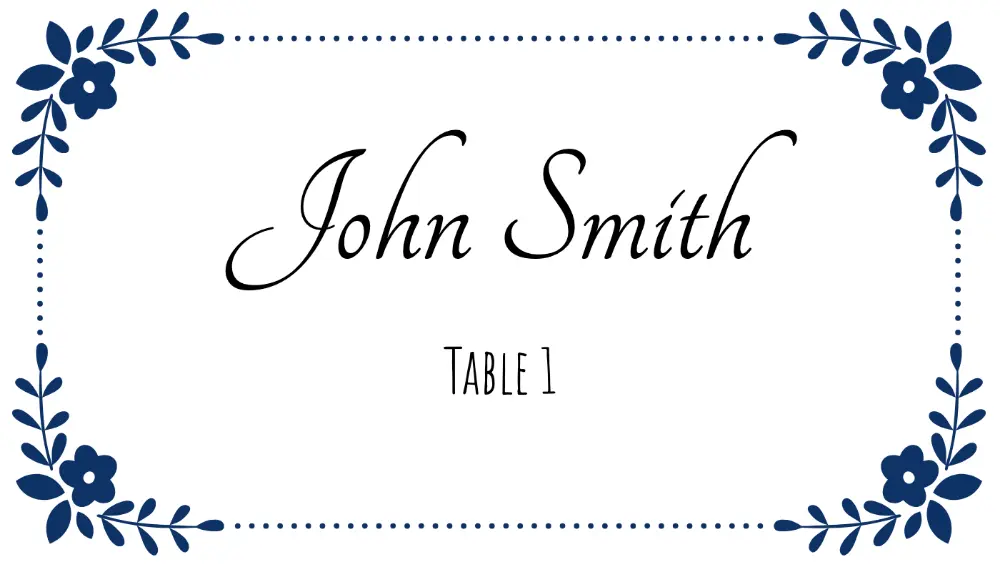
8. Foldable Place Card with Table Number
Two-sided tent design with the guest name on the front and table number on the back. Particularly useful when guests need both pieces of information visible.
Open Tent Card with Table Number →
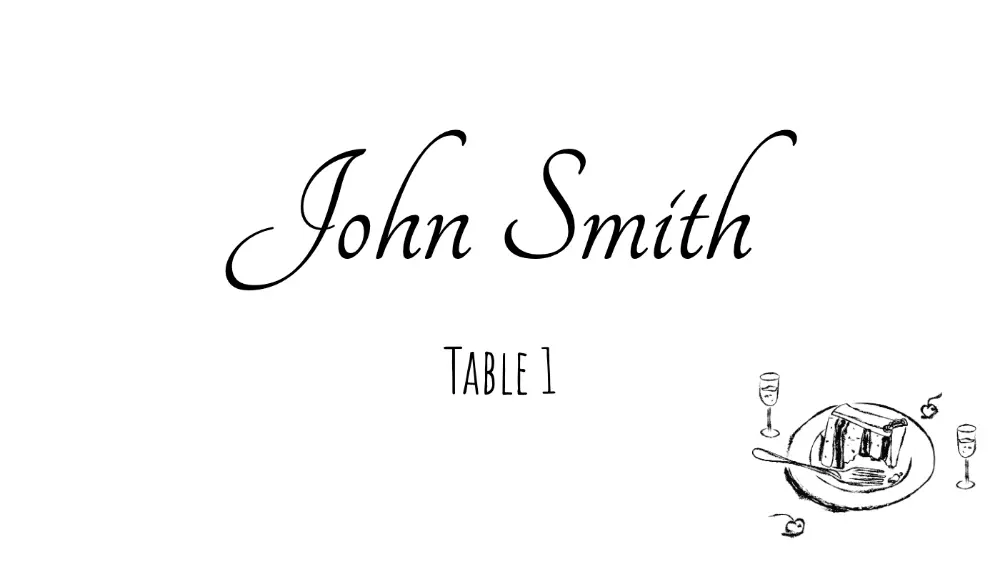
9. Double-Sided Formal Tent
Mirror-image design on both halves of the sheet so the front and back of the tent card look identical. Requires careful alignment when printing double-sided.
Open Formal Tent Card template →
10. Name + Meal Choice Card
A layout with a name field and a small meal indicator section (options like ✓ Chicken / ✓ Vegetarian). Useful for weddings with pre-set menus. Caterers love this format.
Open Name + Meal Choice template →
How to Set Up Place Cards in Word
For 6-Per-Sheet (Flat Cards):
- Open Word and go to Mailings → Labels
- Click Options and choose the vendor/product or custom setup that matches your actual stock
- For 3.5″ × 2″ flat cards: use Avery 5371 (business cards, 10-up) or set a custom label with 3 columns × 2 rows
- Word creates a table matching those card dimensions
- Type your design into the cells, adding fonts, borders, and colors
- To print multiple guests, copy the entire table to a new page and change the name
If you need the exact print workflow rather than template ideas, use How to Print Place Cards in Word.
For Tent Cards:
- Create a new document, set page orientation to Landscape
- Set margins to 0.25″ on all sides
- Create a text box for the top half and a mirrored text box for the bottom half (for double-sided printing)
- Place a dotted "fold here" line in the middle as a guide
- Print, score along the fold line with a bone folder, and fold
For Avery 5302 tent card setup in Word:
- Go to Mailings → Labels → Options
- Select Avery US Letter from the vendor list
- Search for product 5302 — Word has a built-in template for this sheet layout
- Click New Document to use it
Foldable Place Card Template Word Users: Key Setting
When printing foldable place cards, make sure your printer is set to "Flip on short edge" if you want content on both sides. For single-sided tent cards (name only on front), print normally.
For a step-by-step printer setup guide, see How to Print Place Cards in Word.
Word vs Google Docs for Place Card Templates
Both work for small guest lists. Key differences:
| Feature | Microsoft Word | Google Docs |
|---|---|---|
| Built-in Avery templates | ✅ Yes (Mailings → Labels) | ❌ No |
| Mail merge support | ✅ Yes (complex setup) | ❌ No native merge |
| Offline use | ✅ Yes | ❌ Requires internet |
| Free to use | Paid (or Microsoft 365) | ✅ Free |
| Real-time collaboration | ❌ Limited | ✅ Yes |
For Google Docs-specific instructions, see the place card template Google Docs guide.
The Mail Merge Problem
Here's the honest reality about Word mail merge for place cards:
Word's mail merge works by linking a data source (like an Excel file) to a document template. In theory, you set it up once and it generates all your cards automatically. In practice:
- The setup takes 20–30 minutes even for experienced users
- Mail merge with label/card layouts (not letters) involves extra steps to fill all cells on a page
- Any column name changes in Excel break the merge
- Formatting can be inconsistent across merged documents
For many people, it's faster to just type the names manually in Word (for small guest lists under 20) or switch to a dedicated tool.
If you do want the data-driven document workflow, use How to Make Place Cards in Word (Method 4: Excel mail merge) before choosing a template.
The Faster Alternative
Place Card Maker is an online tool that does what Word's mail merge promises but rarely delivers cleanly. You upload your spreadsheet, choose a template, and get a complete PDF with every guest's card in one download — no mail merge setup required.
It also includes built-in place card templates, so you're not starting from scratch. If you have your guest list in Excel already, the whole process takes under 5 minutes.
You can also visit the Microsoft Word templates page if you specifically need a .docx file for further editing.
Downloading & Using the Templates
For Word Templates:
When downloading a .docx place card template:
- Open the file in Word (or Google Docs, which can edit Word files)
- Click into any cell or text box to edit
- Change the placeholder text to your guest's name
- Adjust font size as needed — names longer than 20 characters may need a smaller size
- Print at Actual size (100%) — never "Fit to page"
For Online Templates:
All 10 styles above are available directly in the Place Card Maker — no download required. Open in your browser, customize, and download a print-ready PDF instantly.
Related Resources
- How to Make Place Cards in Word — table layout, tent cards, Excel mail merge, and print tips
- Place card size guide — all standard dimensions
- Microsoft Word place card templates page
- Place card template Google Docs guide
- Free printable place card PDFs
- Avery 5302 place card templates
- 6 per sheet place card templates (flat cards)
Frequently Asked Questions
What size is a place card in Word?
The standard is 3.5″ × 2″ per card. In Word, many flat-card layouts target that finished size. For tent cards, the flat sheet size before folding is typically 3.5″ × 4″ (folded to 3.5″ × 2″). See the full place card size guide for all formats including Avery 5302, A4, and metric sizes.
Can I print foldable place cards on a regular printer?
Yes. Print on cardstock (65–80 lb recommended), score the fold line with a bone folder or the back of a butter knife, and fold. Heavier cardstock (90+ lb) stands up better on tables.
How do I make Word place cards with table numbers?
Add a second text box or cell below the name and type the table number. If using mail merge, add a Table Number column in Excel and merge it as a separate field. If using Place Card Maker, add a Table column to your spreadsheet and it's mapped automatically.
Is there a free blank place card template for Word?
Yes — the Microsoft Word templates page has free downloadable .docx templates. All 10 templates in this article are also available in the free templates library and the Place Card Maker for online customization.
How do I make place cards in Word without mail merge?
For small lists (under 20 guests), type directly into the template cells — it's the simplest approach. For a blank-document walkthrough (table sizing and tent cards), use How to Make Place Cards in Word. For larger lists, the Place Card Maker is faster than mail merge: upload your spreadsheet and generate all cards automatically, no Word required.
What's the difference between Avery 5302 and a regular 6-per-sheet template?
Avery 5302 is a verified tent card (foldable) format with 4 cards per sheet at 3.5″ × 2″ folded. A generic 6-per-sheet is typically a flat card format with 6 cards per sheet at 3.5″ × 2″ flat. They are not interchangeable. See the Avery place card templates page for Avery-specific layouts.
Can I open Word place card templates in Google Docs?
Yes. Download the .docx file, upload it to Google Drive, and open it with Google Docs. Minor formatting adjustments may be needed after conversion. See the place card template Google Docs guide for alternatives if you prefer working entirely in Google.
Start With a Template Today
Whether you use Word, download a file, or use the online maker, place cards are easy to create with the right template as your starting point.
Open Place Card Maker — no download required → | Browse all free templates →