

Google Docs is a popular choice for making place cards because it's free, runs in any browser, and shares easily. You can absolutely build a usable place card template in Google Docs — and this guide shows exactly how to do it.
It also covers where Google Docs falls short (batch printing for large guest lists) and the fastest alternative when you have more than 20–30 guests.
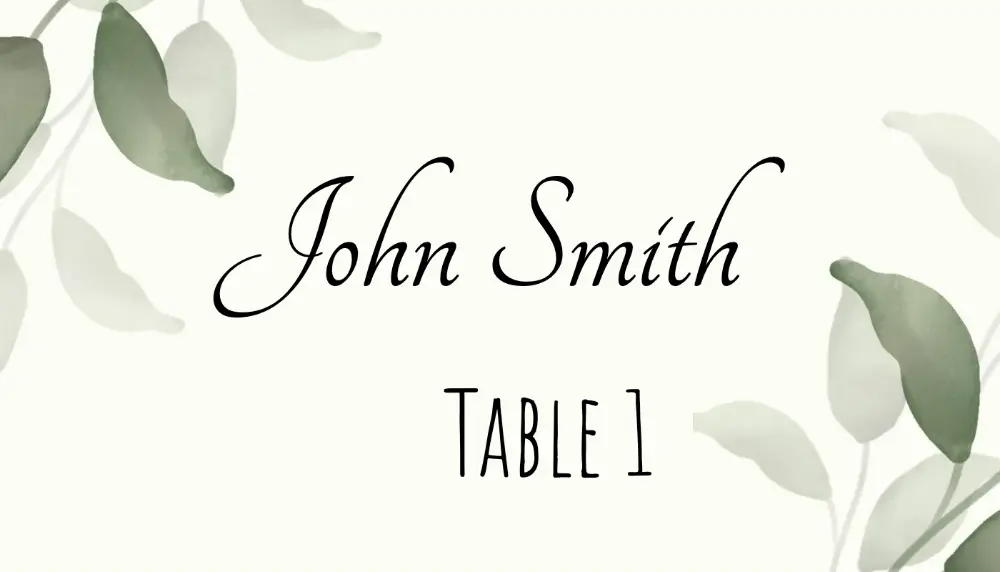
Quick Answer: Can I Use Google Docs for Place Cards?
Yes. Google Docs can handle simple place card layouts using tables or drawing tools. It works well for small guest lists under 30 people where you don't mind typing each name manually.
For larger lists, the spreadsheet-to-PDF workflow in Place Card Maker is significantly faster — you import your guest list once and get every card generated automatically.
Method 1: Place Cards Using a Table in Google Docs
This is the most reliable method for a flat 6-per-sheet layout.
Step 1: Set Up the Document
- Open a new Google Doc
- Go to File → Page Setup
- Set paper size to Letter (8.5 × 11 in)
- Set all margins to 0.25 inches (to maximize card space)
- Set orientation to Portrait
Step 2: Insert a Table
- Go to Insert → Table
- Select 3 columns × 2 rows
This creates a 6-cell grid — one cell per place card.
Step 3: Resize the Cells
- Click inside the table, then go to Format → Table → Table properties
- Set the minimum row height to 2 inches
- Manually drag each column border until all columns are equal width (~2.83 inches each)
Tip: Google Docs doesn't let you type an exact column width directly. Use a ruler guide or drag carefully. The goal is equal columns across the full page width minus margins.
Step 4: Add Guest Names
- Click into each cell
- Type the guest name
- Center-align the text: Format → Align & indent → Center
- Set a font that matches your event:
- Playfair Display or Cormorant Garamond for weddings
- Lato or Open Sans for modern/corporate events
- Dancing Script for a handwritten look
Step 5: Add Borders and Styling
- Select all cells: click the top-left cell, hold Shift, click bottom-right
- Format → Table → Table properties → Cell background color
- For a border: Table → Table borders → choose color and thickness
Step 6: Print the Template
- Go to File → Print
- Set scale to 100% (not "Fit to page")
- Choose your printer and confirm paper size is Letter
- Print on 65 lb cardstock for flat cards
Method 2: Place Cards Using Google Drawings
Google Drawings gives you more design flexibility than a table. Good for tent cards or custom shapes.
Step 1: Insert a Drawing
- In your Google Doc, go to Insert → Drawing → New
- This opens the Drawing canvas
Step 2: Set Canvas Size
- In Google Drawings, go to File → Page setup
- Set custom dimensions: 3.5 inches wide × 2 inches tall (standard flat place card size)
Step 3: Design Your Card
- Use Insert → Text box to add a name placeholder
- Use Insert → Shape to add border lines or decorative elements
- Click the background to change the canvas color
Step 4: Save and Tile for Printing
- Click Save and Close to return to your Doc
- The drawing appears inline — resize it to match your layout
- To get 6 per page: copy and paste the drawing 5 more times and arrange them in 2 rows of 3
Limitation: Tiling drawings manually in Google Docs is tedious. Each copy must be precisely positioned. For anything beyond a test card, the table method above is more practical.
Method 3: Download a Pre-Made Google Docs Place Card Template
Several sites offer .docx templates that you open in Google Docs:
- Download a
.docxplace card template from Microsoft Word templates page - Open Google Drive → New → File Upload
- Upload the
.docxfile - Right-click it in Drive → Open with Google Docs
- Google Docs converts the file automatically
The converted file may need minor formatting adjustments, but it's a fast starting point.
The Google Docs Limitation: Large Guest Lists
Here's the core problem with Google Docs for place cards:
Every guest name must be typed or pasted manually.
For a wedding with 80 guests, that's 80 separate text edits across multiple documents. It's manageable for small gatherings — it becomes a significant time investment at scale.
Word has mail merge to handle this, but it's complex to configure. Google Docs has no native equivalent for label/card batch printing.
The Faster Alternative for 30+ Guests
Place Card Maker does what Google Docs can't: it takes your guest list from a spreadsheet and generates a complete PDF with every guest's card in one step.
How it works:
- Open the Place Card Maker
- Choose a template from the gallery (50+ free designs)
- Import your guest list from Google Sheets, Excel, or a CSV
- Preview all cards — edit any individual card if needed
- Download a print-ready PDF for the full guest list
For 80 guests, this takes 5 minutes instead of 2 hours.
Try Place Card Maker free — no signup for basic use →
Google Docs vs Place Card Maker: Comparison
| Feature | Google Docs | Place Card Maker |
|---|---|---|
| Cost | Free | Free (basic) |
| Design flexibility | Medium | High (50+ templates) |
| Batch printing from spreadsheet | ❌ Manual only | ✅ Automatic |
| Import from Google Sheets | ❌ No | ✅ Yes |
| Export print-ready PDF | ✅ (via print to PDF) | ✅ Optimized for cards |
| Avery 5302 layout | Manual setup | ✅ Built-in |
| Best for | Under 20–30 guests | Any size guest list |
Tips for Better Place Cards in Google Docs
Use Google Fonts
Google Docs has access to hundreds of Google Fonts — far more than the default font list. Click More fonts in the font dropdown to search for:
- Playfair Display — elegant serif, great for weddings
- Dancing Script — handwritten style, popular for place cards
- Josefin Sans — clean geometric, good for modern events
- EB Garamond — classic, pairs well with floral designs
Match Your Paper
Before printing a full run:
- Print a test page on plain copy paper
- Hold the test print over your cardstock
- Check that text falls within the card boundaries
See the place card sizes guide for standard dimensions before setting up your template.
Add Table Numbers
If you're doing assigned seating, add a small table number below each guest name. In your Google Docs table:
- Click inside the cell
- Press Enter after the guest name to add a new line
- Type the table number in a smaller font size (e.g., 10–12 pt)
For larger events, this is much easier to manage from a spreadsheet — see how to import place card data from Google Sheets.
Frequently Asked Questions
Is there a free place card template for Google Docs?
Yes. You can create one using the table method above (3 columns × 2 rows on a Letter page), or download a .docx template and open it in Google Docs. For designed templates with images and decorative borders, use the free place card templates library and export a PDF directly.
What size should a place card be in Google Docs?
The standard place card size is 3.5 inches wide × 2 inches tall for flat cards. For tent cards, the pre-fold size is 3.5 × 4 inches (folded to 3.5 × 2). Set your table cells or drawing canvas to these dimensions. See the full place card size guide for all common formats including Avery 5302, A4, and metric sizes.
Can Google Docs print 6 place cards per sheet?
Yes, using the 3 × 2 table method described above. Set Letter paper (8.5 × 11 in) with 0.25-inch margins, insert a 3-column × 2-row table, and set each row height to 2 inches. Print at 100% scale (not "fit to page").
How do I make foldable place cards in Google Docs?
Set the document orientation to Landscape, create a table with 2 columns, and design each column as one half of the tent card. After printing, score the center fold line with a bone folder and fold. For a pre-built foldable template, use the foldable place card template Word option and open it in Google Docs.
Can I import names from Google Sheets into my Google Docs place cards?
Not directly — Google Docs has no native mail merge for tables. The workaround is Google Apps Script, which requires coding knowledge. An easier option: use Place Card Maker, which connects directly to Google Sheets and generates all cards automatically without any coding.
What font looks best for place cards in Google Docs?
For weddings: Playfair Display, Cormorant Garamond, or Dancing Script — or skip Docs fonts and start from wedding place card templates. For modern or corporate events: Lato, Montserrat, or Josefin Sans. Avoid very thin fonts — they can appear faint when printed on cardstock.
Summary
Google Docs is a practical choice for simple place card templates — especially for small events where you don't mind typing names manually. Use a 3 × 2 table for flat 6-per-sheet cards, Google Drawings for custom tent card shapes, or import a .docx template for a designed starting point.
For events with 30+ guests, Place Card Maker handles the guest-list import automatically, saving hours of manual work. Reception hosts can start on wedding place card templates; the free place card templates library has 50+ designs ready to customize online.
Browse free place card templates → | Open Place Card Maker → | Wedding place cards →