
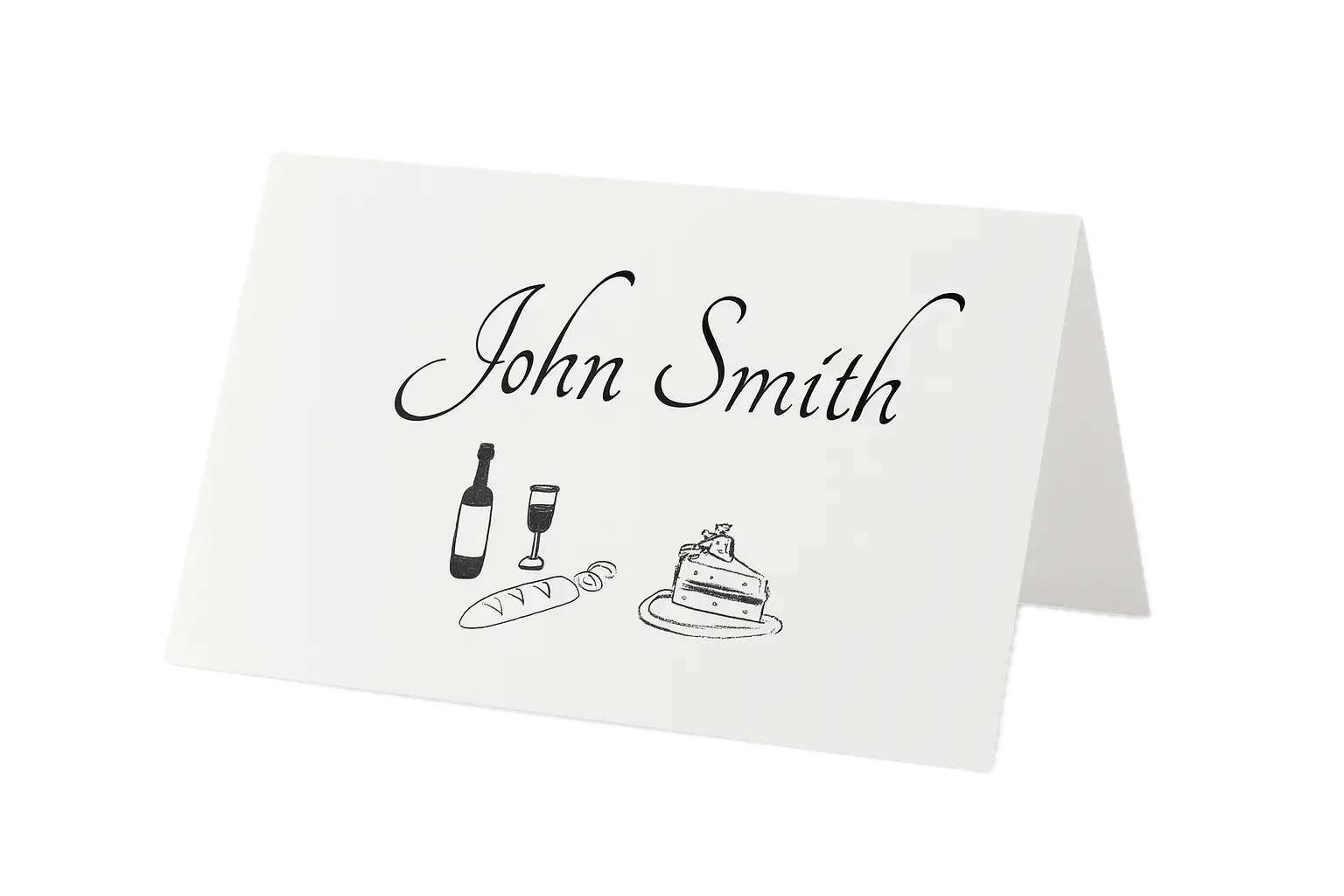
Place cards do one simple job: they tell guests where to sit. But printing them cleanly, with the right paper, size, and guest data, takes a bit of planning. This guide covers the full workflow from guest list spreadsheet to final PDF.
Whether you're printing 10 cards for a rehearsal dinner or 300 for a wedding, the same fundamentals apply.

Part 1: Understanding Place Card Sizes and Formats
Before you design anything, decide which physical format you're working with. The format affects paper choice, printer settings, and how the cards will stand on tables.
Common Place Card Formats
| Format | Typical Size | Best For |
|---|---|---|
| Flat card (lay-flat) | 3.5" × 2" | Simple seating labels, escort cards |
| Tent card (folded) | 3.5" × 2" folded (4" × 3.5" flat) | Tables, visible from both sides |
| Small tent card | 2" × 3" folded | Intimate dinners, tight table settings |
| Generic 6-up flat cards | 3.5" × 2" each, 6 per sheet | Popular home-printing format |
| Avery 5302 | 3.5" × 2" folded, 4 per sheet | Verified tent card option |
| Large tent card | 4.25" × 2" folded | Corporate events, easier to read |
The most common choice for weddings and dinner parties is a 3.5" × 2" finished card. If you want a verified branded tent-card option, Avery 5302 folds to that size. If you want maximum paper efficiency, a generic 6 per sheet 3.5" × 2" layout is also common for flat cards.
Flat vs. Tent Card
- Flat cards are placed in a designated spot or can lean against a name card holder. They're simpler to print and look sleek in modern settings.
- Tent cards stand up on their own by folding along the center crease. They're more visible and traditional.
Most home printers handle both formats equally well. The difference is just in how you fold the finished card.
Part 2: Choosing the Right Paper
Paper choice is where most DIY place cards go wrong. Using regular copy paper (20 lb) produces flimsy, unprofessional-looking cards. Here's what to use instead:
Paper Weight Guide
| Paper Weight | Feel | Best Use |
|---|---|---|
| 20 lb (75 gsm) | Thin, flimsy | Draft/test prints only |
| 65 lb (176 gsm) | Firm, postcard-like | Flat place cards |
| 80 lb (216 gsm) | Heavy, professional | Flat cards, most events |
| 90–100 lb (243–270 gsm) | Very stiff | Tent cards that need to stand firmly |
| 110 lb (297 gsm) | Card stock, rigid | Premium events, laser printing |
Recommendation: For most weddings and events, 80 lb white cardstock is the sweet spot. It feeds through most home printers without jamming and feels substantial in hand.
Finish Options
- Matte: Best for writeable surfaces and laser printers. Elegant, non-reflective.
- Glossy: Vivid colors and photos pop, but fingerprints show easily. Use for colorful birthday or themed events.
- Linen/Vellum: Textured surface that feels premium. Best for formal or rustic-themed events.
Perforated Sheets
For 6-per-sheet printing, use printable card stock that explicitly matches a 3.5" × 2" finished card in a 3 × 2 layout on Letter paper. If you want a verified foldable Avery option instead, use 5302.
Part 3: Step-by-Step — From Guest List to Printed Cards
Here's the complete workflow using Place Card Maker, the fastest way to go from a spreadsheet to a finished PDF.
Step 1: Organize Your Guest List
Your spreadsheet should have at minimum:
Guest Name(or separateFirst Name/Last Namecolumns)Table Number(if using assigned seating)- Optional:
Meal Choice,Dietary Notes
If the list is still changing, keep it in Google Sheets. If it came from another tool, export a clean CSV.
Step 2: Choose a Template
Open Place Card Maker and choose the layout that matches the job:
- Avery-compatible folded place cards
- 6-per-sheet printable cards
- escort cards with table assignments
You can change colors and fonts after selecting the layout.
If you specifically want Avery-compatible options first, browse Avery Place Card Templates or check the sizes in Place Card Sizes.
For occasion-specific layouts, start with Wedding Place Card Templates or read our dedicated wedding place card guide. For seasonal events, see Halloween Place Cards or Thanksgiving Place Cards. If guests only need a table assignment, use the Wedding Escort Cards Maker instead.
Step 3: Import Your Guest List
Click Import Data in the designer (or go to /import-data) and upload your CSV or connect Google Sheets. The tool maps your column headers, such as Guest Name and Table, to the fields in the template.
This step is what transforms the process. Instead of typing 150 names one by one, you import them all at once and the tool creates 150 individual cards in seconds.
Step 4: Customize Design
With your guest list loaded, adjust the design:
- Font style and size
- Background color or border style
- Text alignment (centered names look most formal)
- Add your event name, date, or logo if desired
Changes apply to all cards simultaneously — you're editing the template, not individual cards.
Step 5: Download PDF and Print
Click Download PDF. The file will contain all your cards, properly laid out for your chosen paper format.
Open in Adobe Acrobat or Preview and print:
- Paper size: Letter (8.5" × 11")
- Scale: 100% / Actual size (never "fit to page")
- Quality: High / Best
- Paper: Load your cardstock into the manual feed tray
Part 4: Home Printing vs. Print Shop
Printing at Home
Pros: Convenient, last-minute changes are easy, no minimum order quantity Cons: Limited to your printer's quality, cardstock can jam some printers
Tips for home printing:
- Use the manual paper feed (straight-through path) to avoid cardstock jamming
- Let printed cards dry for 5 minutes before stacking (especially with inkjet)
- If colors look washed out, increase print quality to "Best" or "Photo" mode
Using a Print Shop
Pros: Higher quality, better color accuracy, professional cutting available Cons: Costs more, requires lead time (usually 1–2 days minimum)
Services like FedEx Office, Staples Print & Marketing, and local print shops all accept PDF files. For the cleanest result, ask for:
- 100 lb cardstock, matte finish
- Full bleed if your template has edge-to-edge color
- Cutting service to exact dimensions
Budget tip: FedEx Office's self-service printers let you print at a much lower cost than counter service. Bring a USB drive with your PDF.
Part 5: Common Mistakes to Avoid
1. Wrong scale when printing Always print at 100% / Actual size. "Fit to page" shrinks everything slightly, causing misalignment with perforated sheets.
2. Using regular copy paper Place cards on copy paper look and feel cheap. Invest in 65–80 lb cardstock. A pack costs $10–15 and covers most events.
3. Typos in guest names Always proofread before printing. It sounds obvious, but a typo on a wedding place card causes real awkwardness. Export your spreadsheet, review every name, then import. Many people miss middle names or name suffixes (Jr., III, etc.).
4. Printing one card at a time If you're typing each name manually in a design tool, stop. Import your guest list from a spreadsheet using Place Card Maker and generate all cards at once.
5. No test print Always print one test page on plain paper before loading cardstock. Hold it up to your cardstock sheet against a light to check alignment.
Quick Reference: What You Need
| Item | Recommended |
|---|---|
| Paper | Avery 5302, 80 lb cardstock, or other verified printable card stock |
| Printer | Any inkjet or laser, manual feed |
| Design tool | Place Card Maker |
| Guest list format | Google Sheets, Excel, or CSV |
| PDF viewer | Adobe Acrobat Reader (free) |
Start Printing Today
The complete workflow — from spreadsheet to printed PDF — takes under 10 minutes for most events. Open the Place Card Maker, import your guest list, choose a template, and download.
If the names will be worn as conference, visitor, volunteer, or classroom badges instead of placed on a table, use the Free Name Tag Maker with the same spreadsheet-first workflow.