
Free Place Card Templates
Choose a design first—wedding, dinner, floral, holiday, or minimalist. Then download a blank PDF, or import your guest list to customize and print.
Pick a design · Download a blank PDF · Or fill names from Excel / Google Sheets

Browse Free Printable Place Card Templates
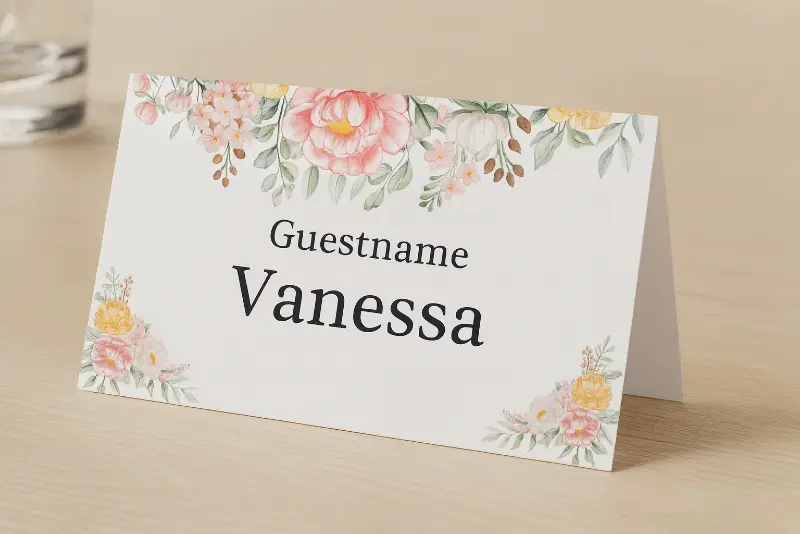
Filter by wedding, floral, holiday, birthday, or minimalist style. Customize any design online, or download a blank PDF matched to the card size.
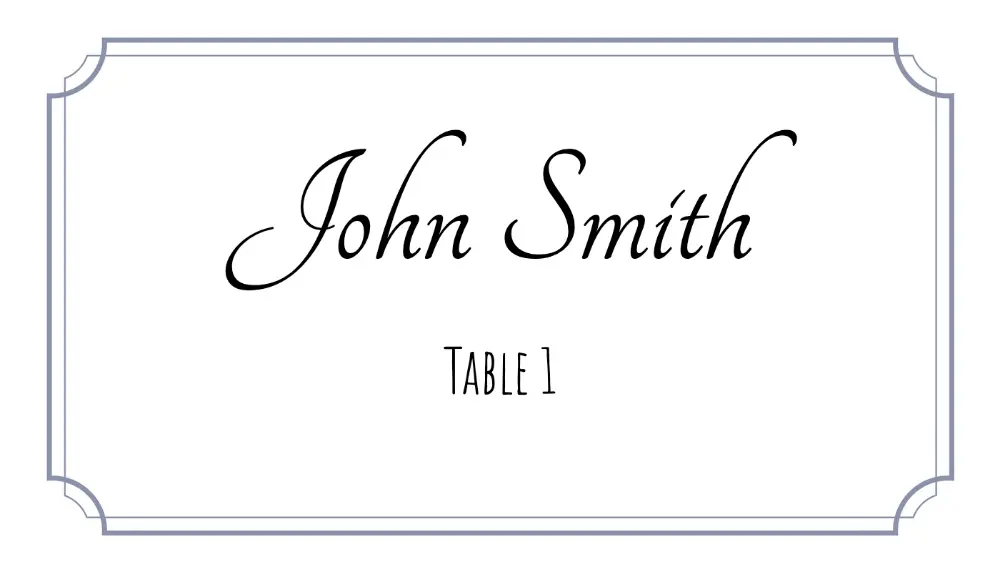
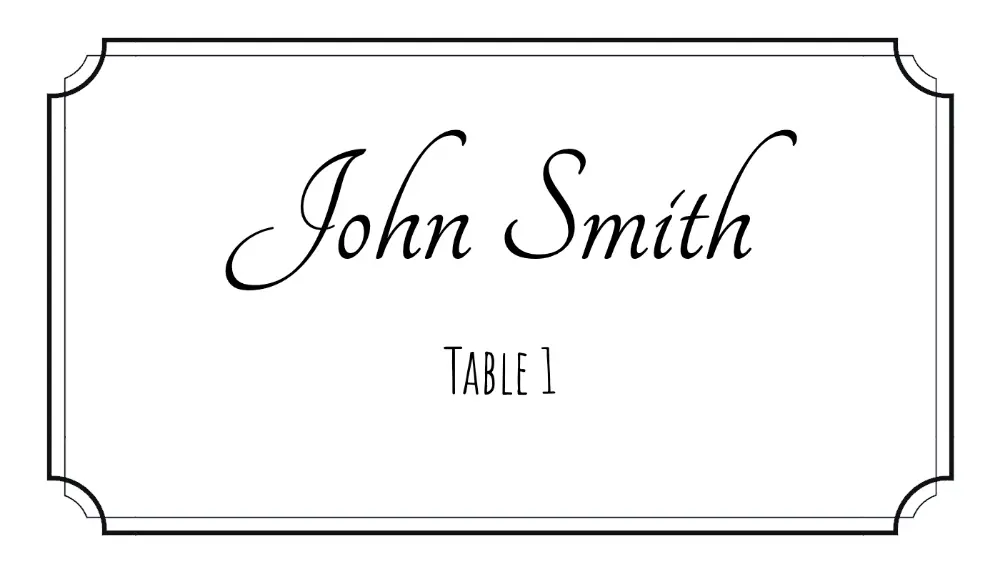
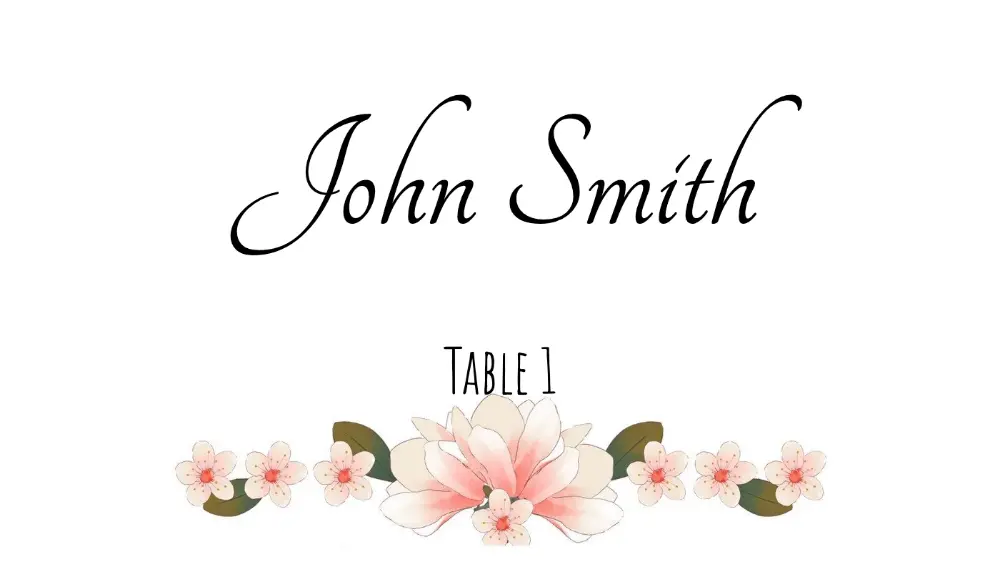
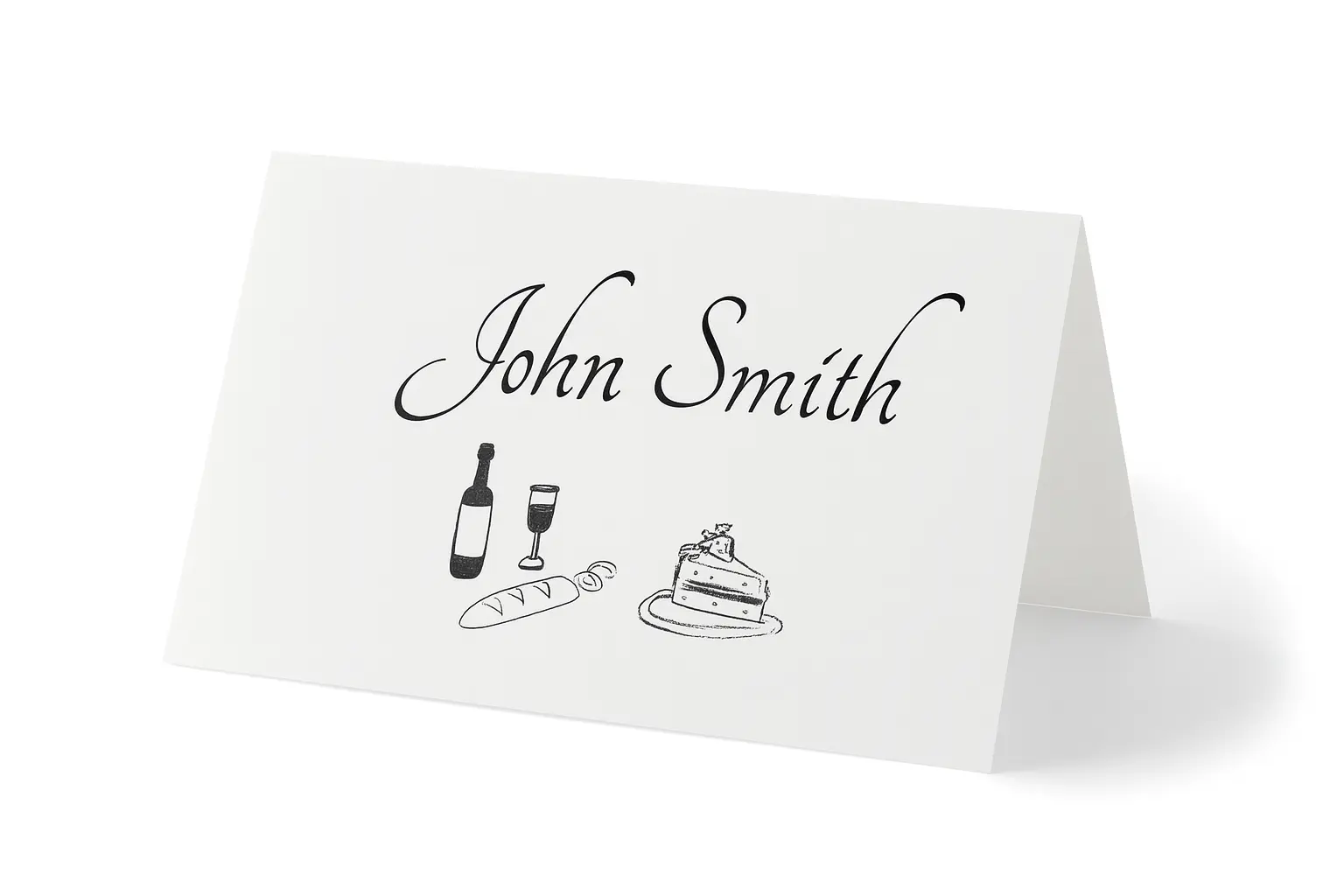
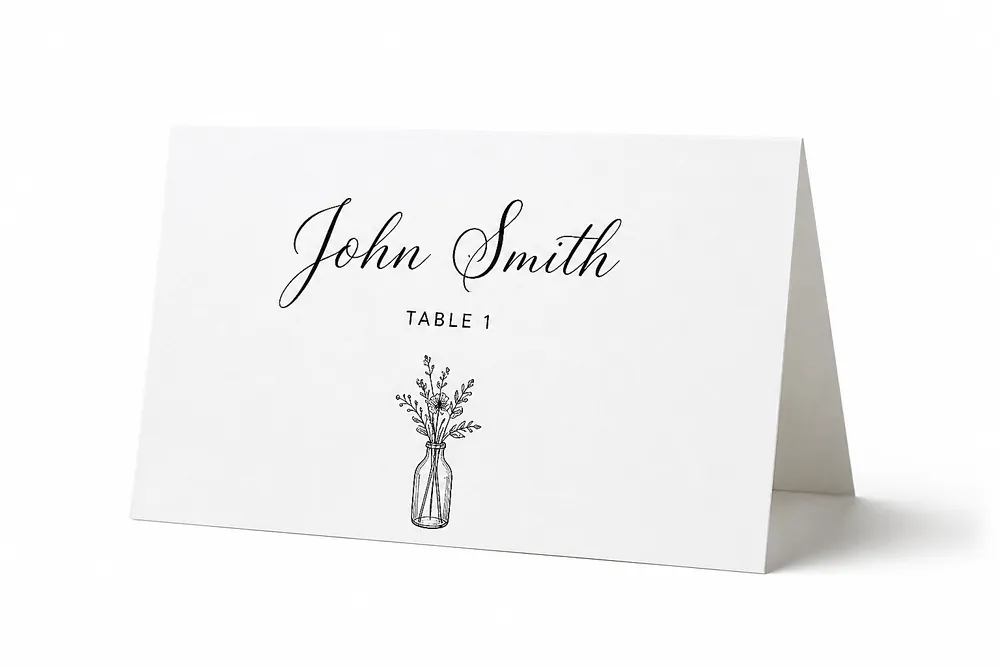
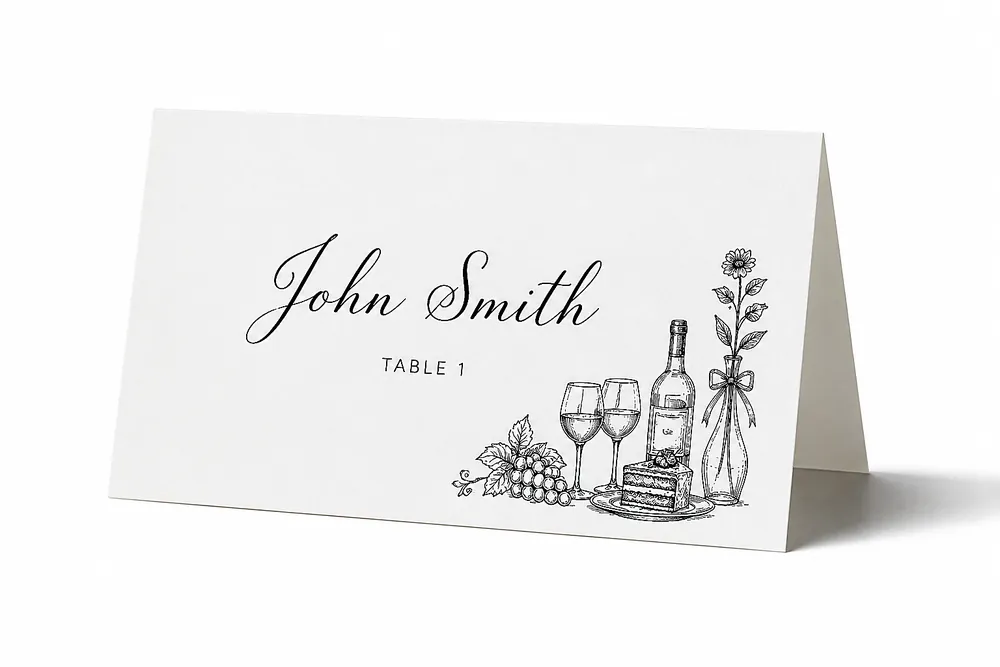
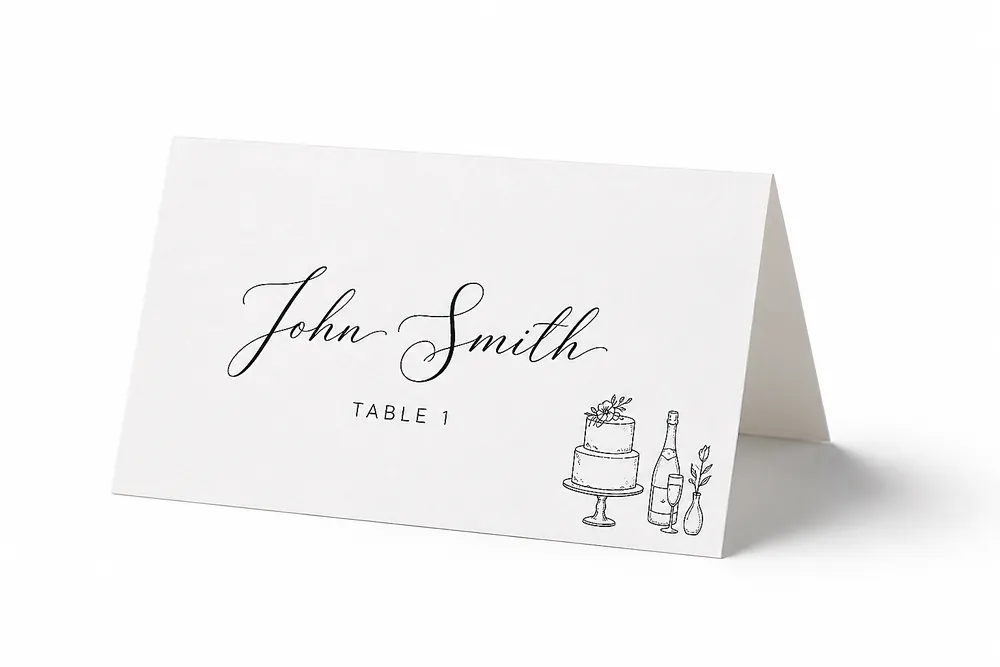


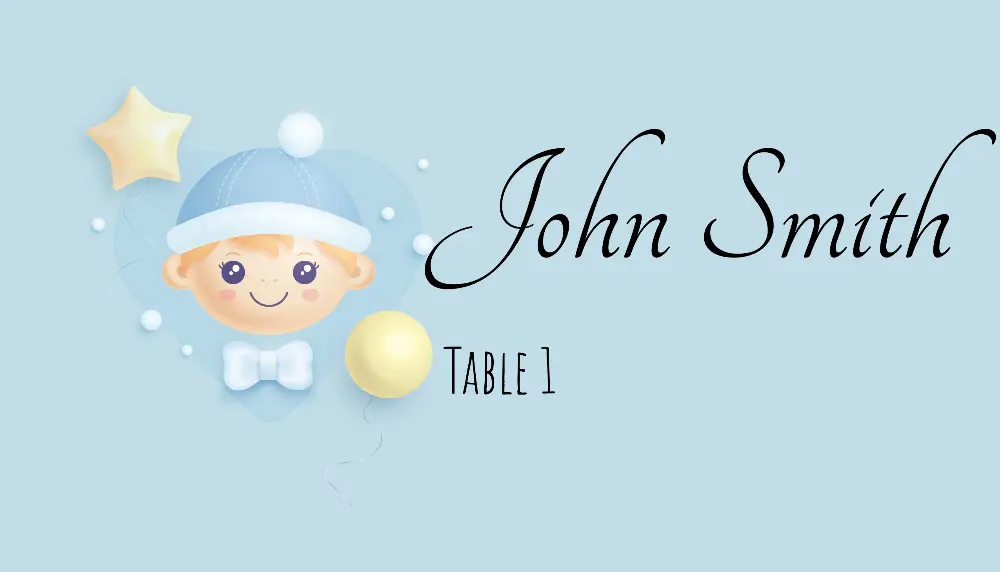
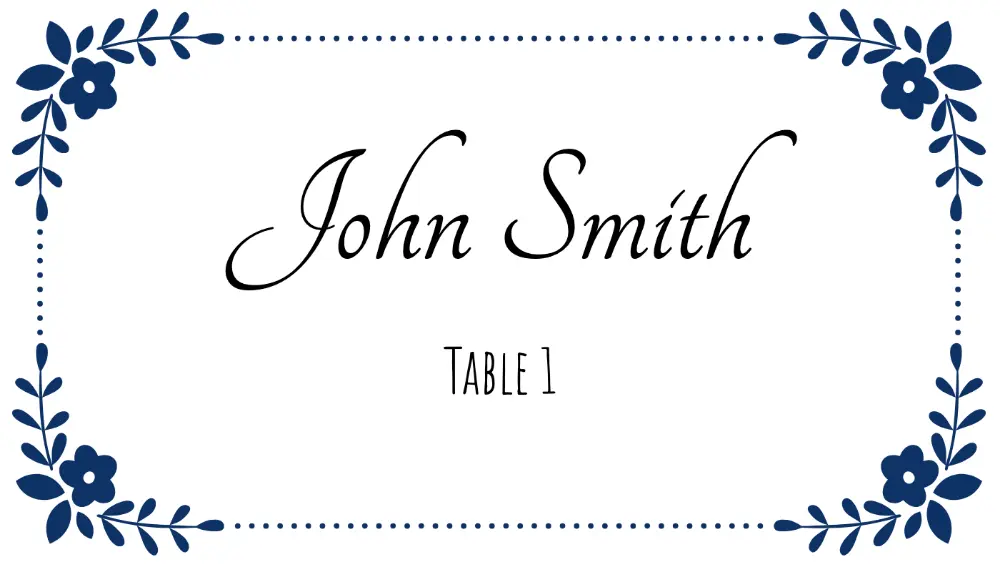

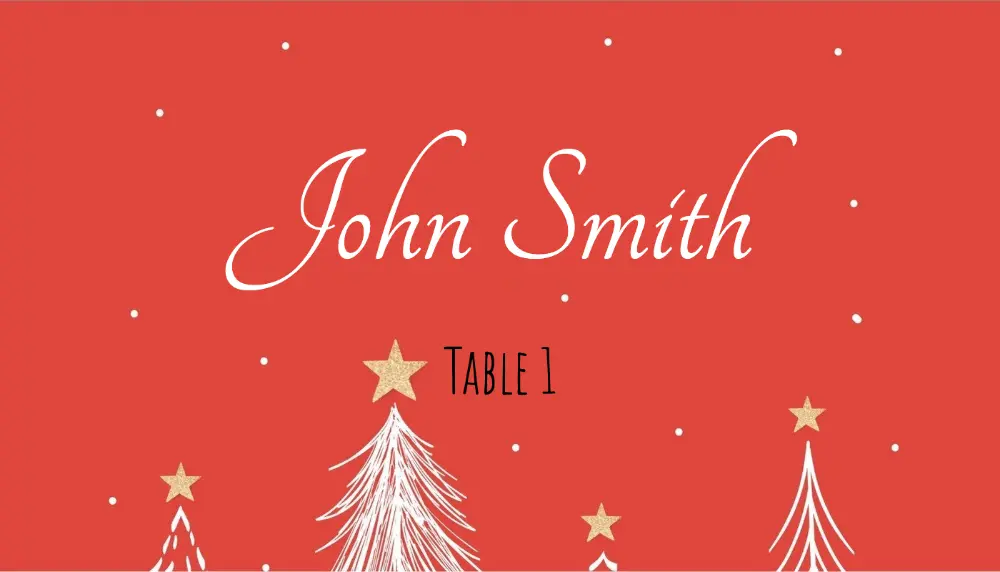
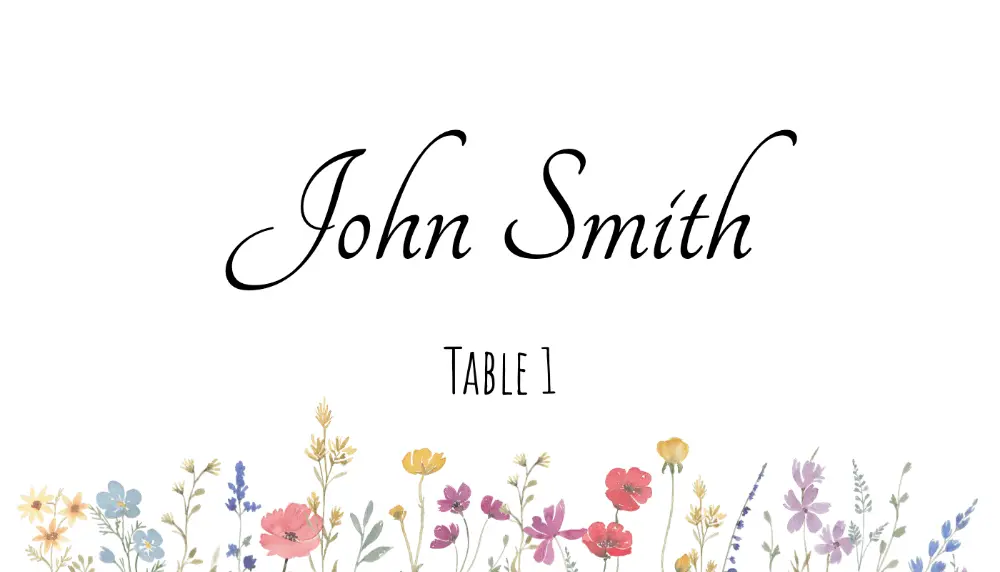
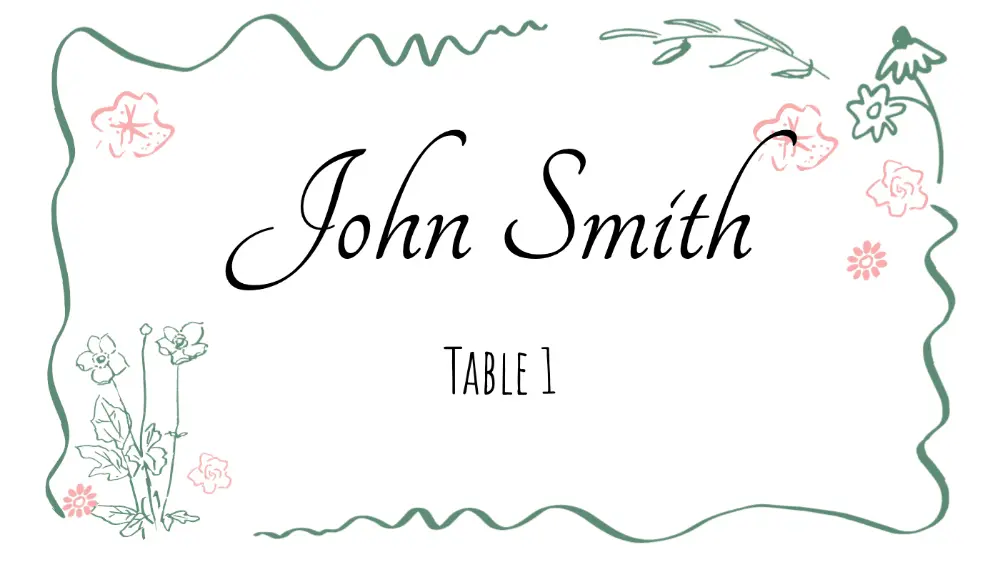
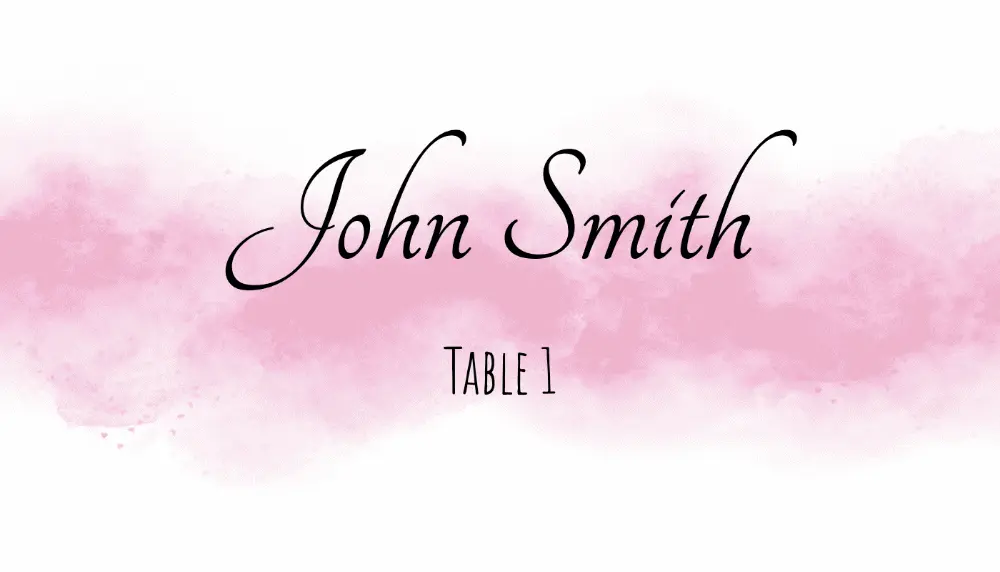
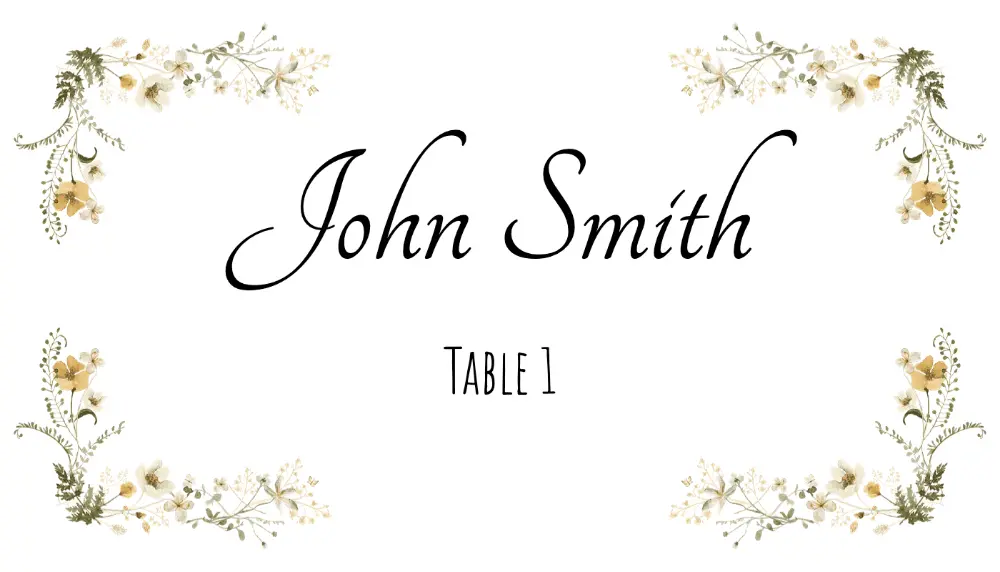
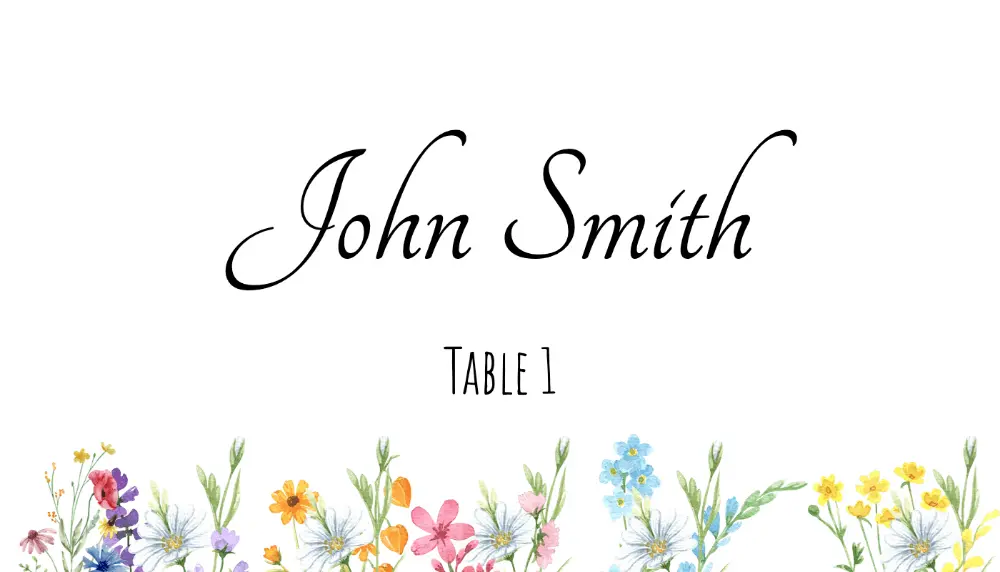
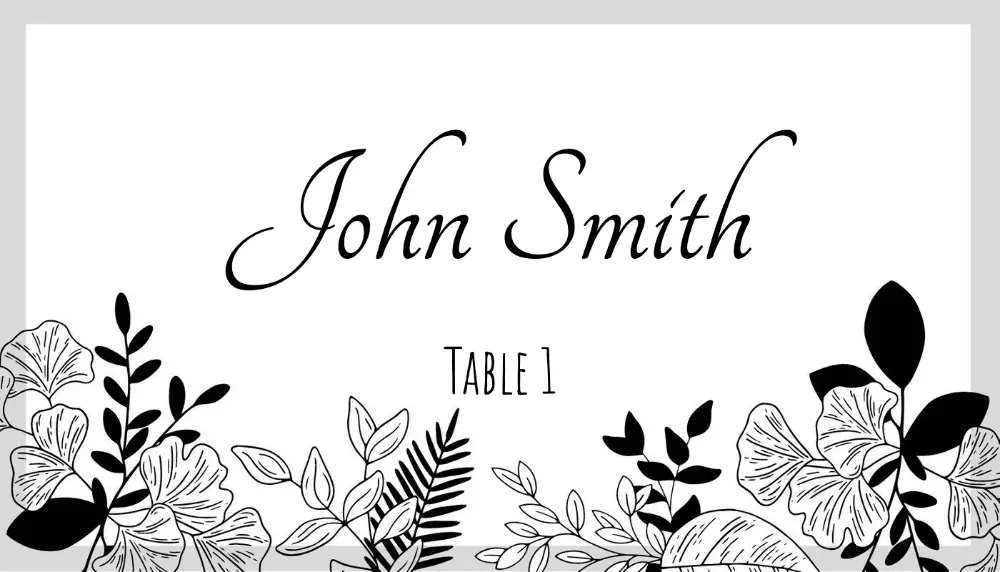
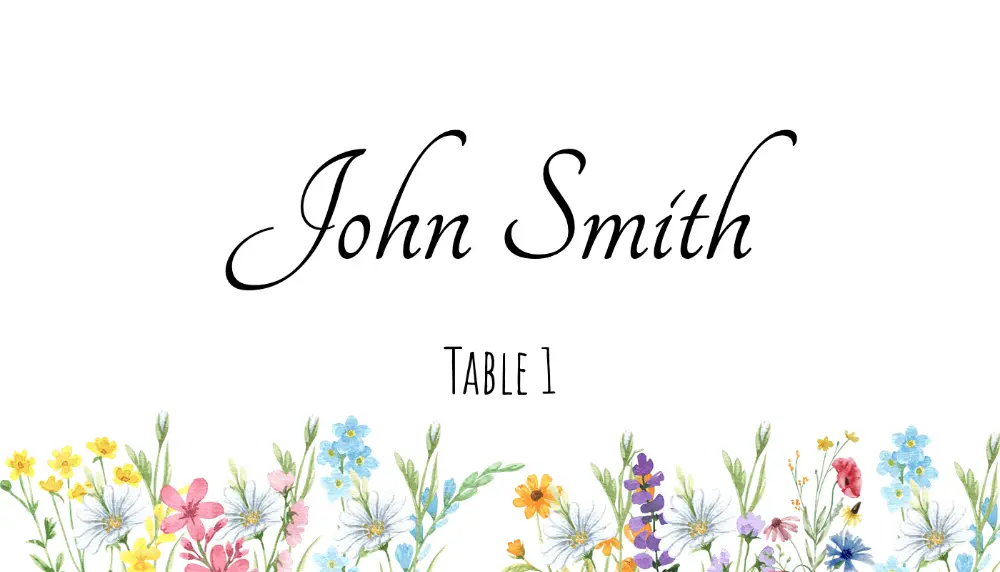
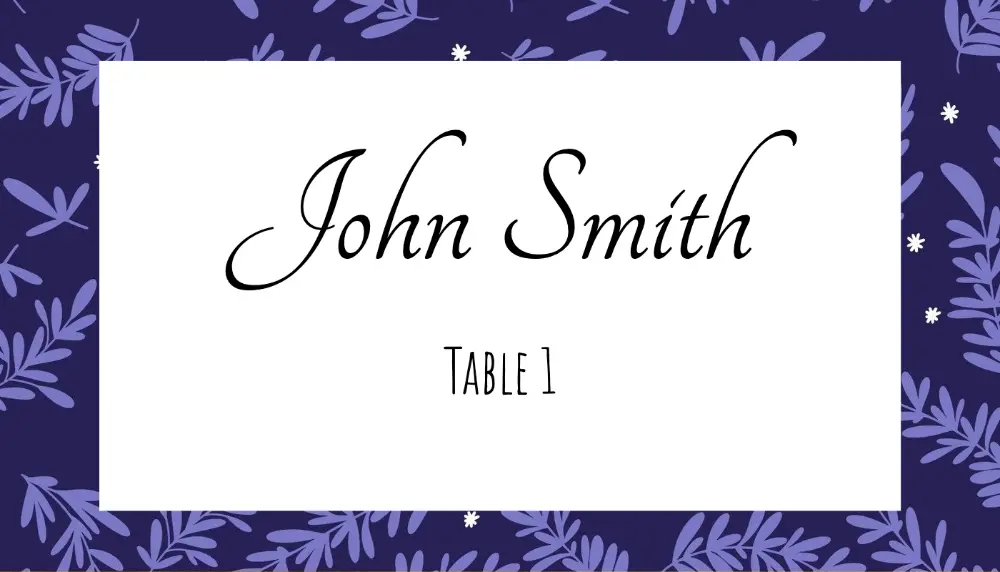

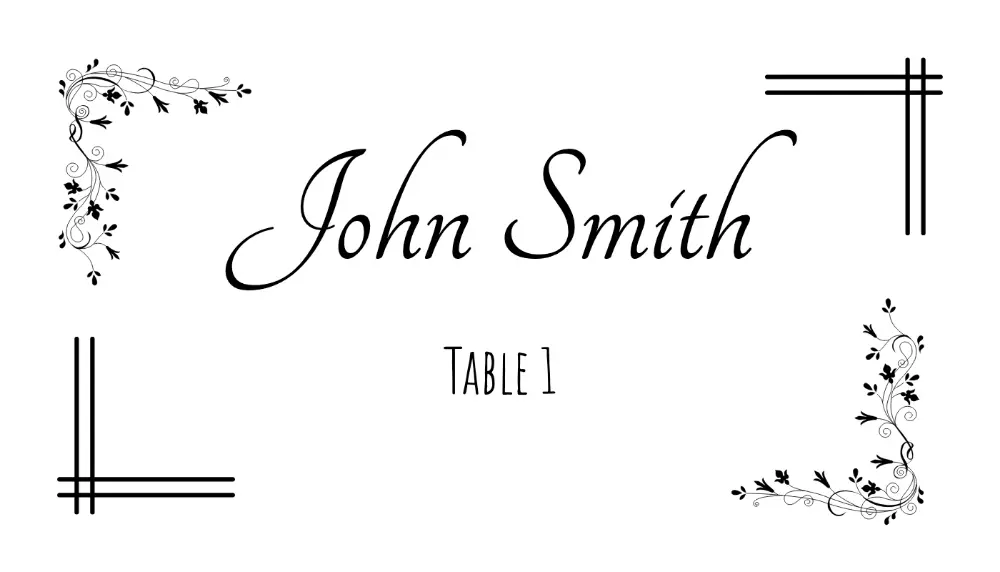

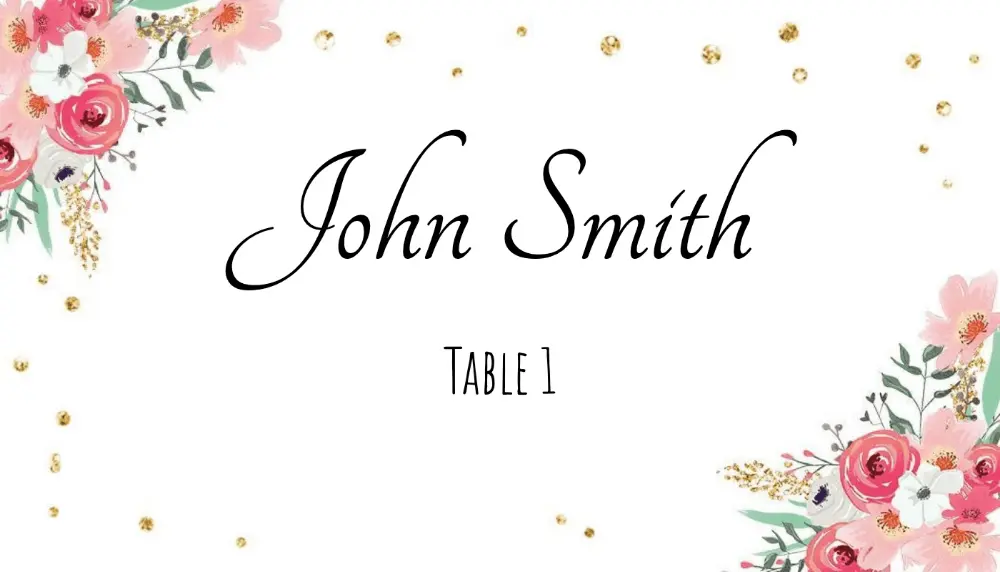
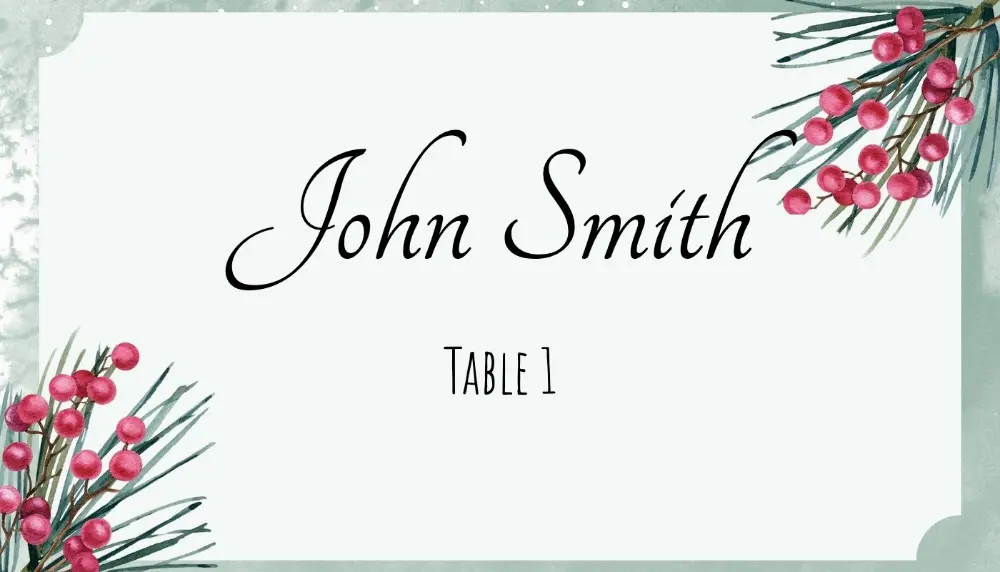
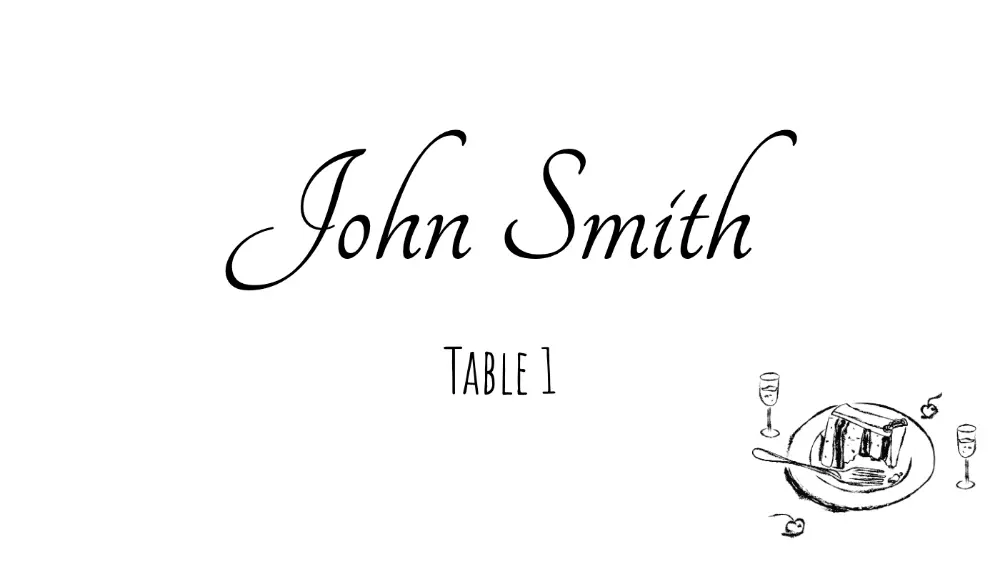
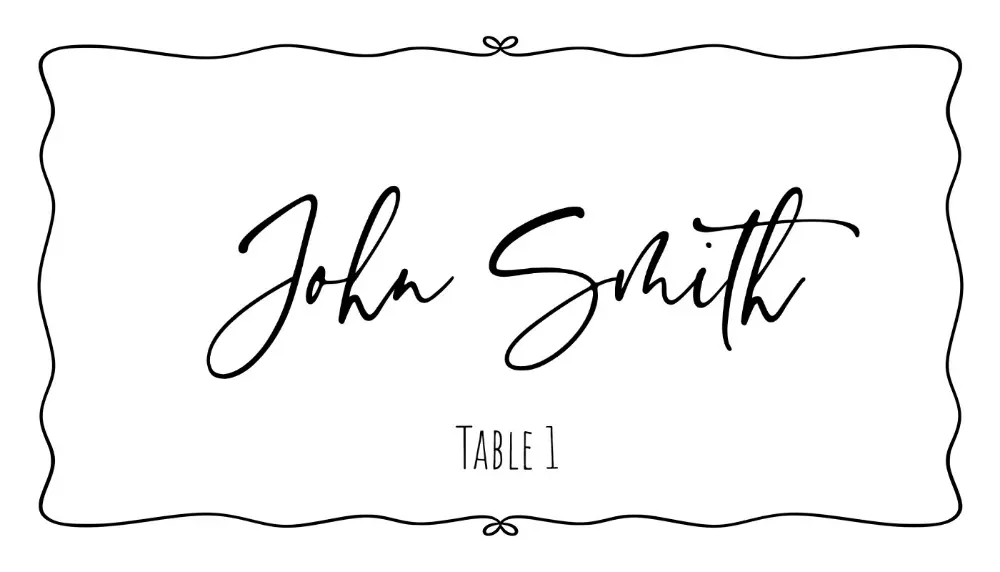
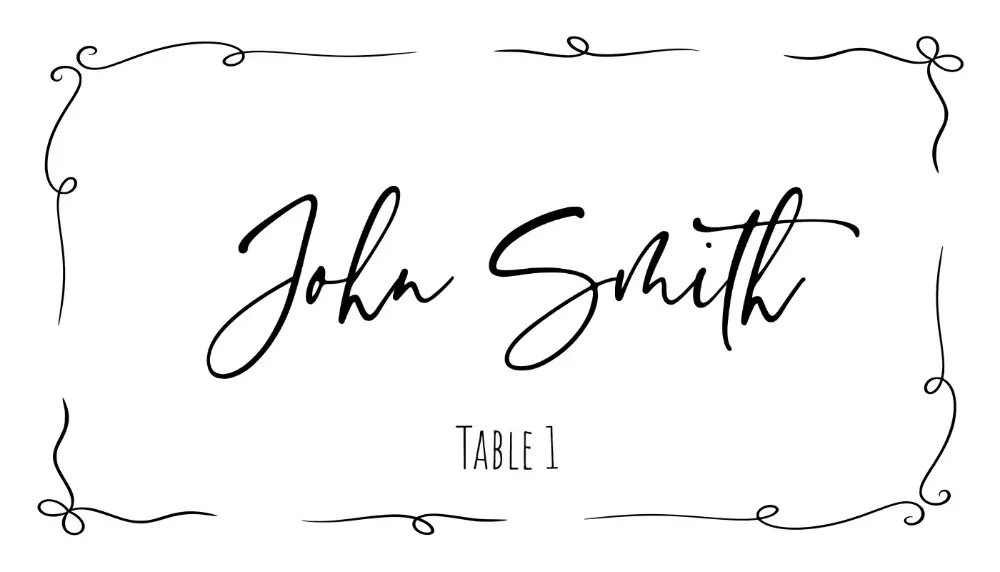
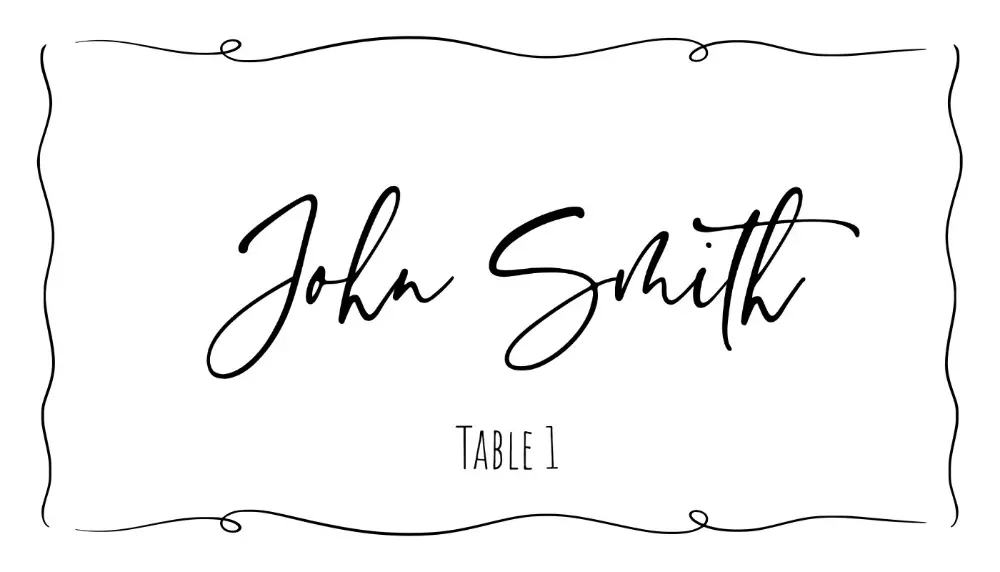
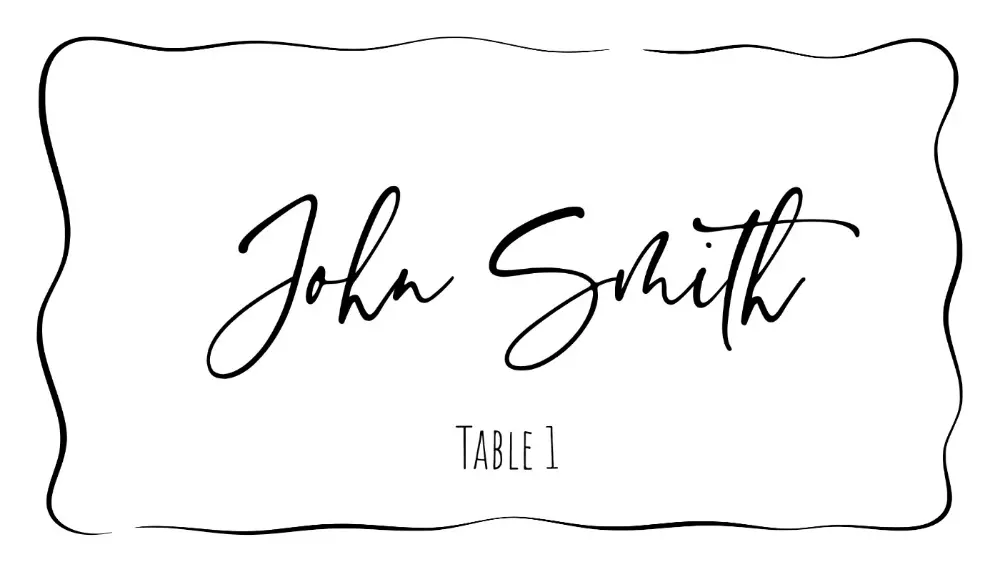
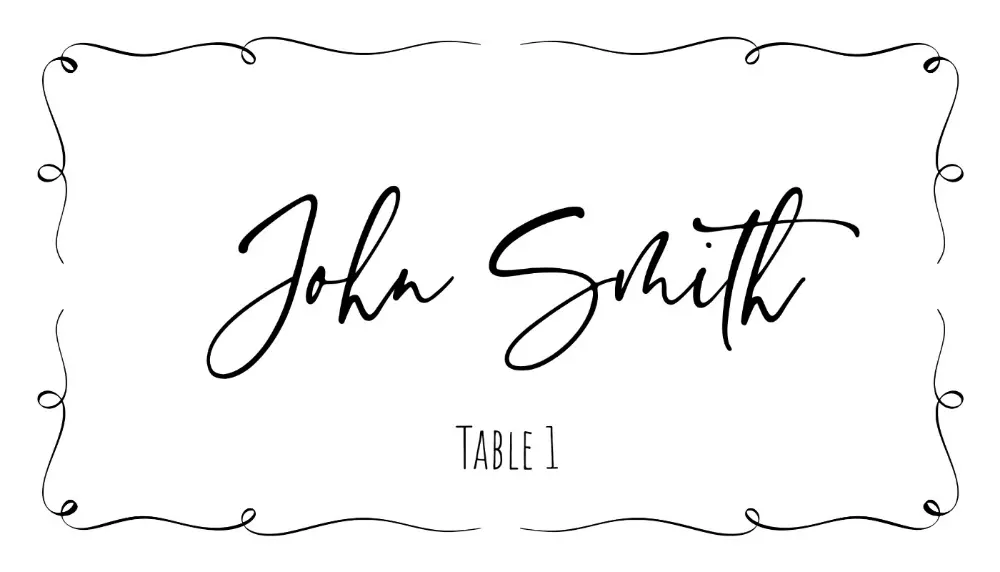
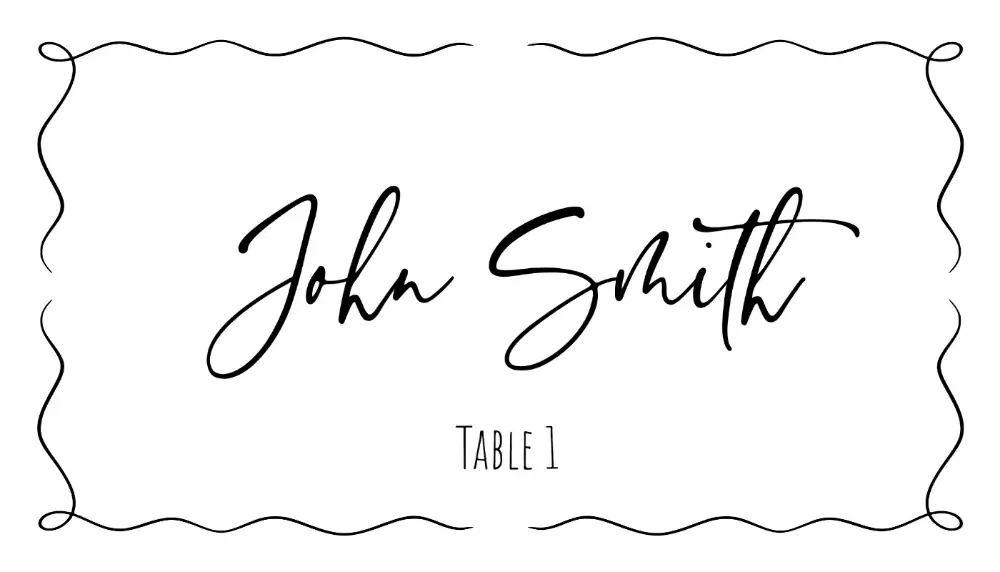
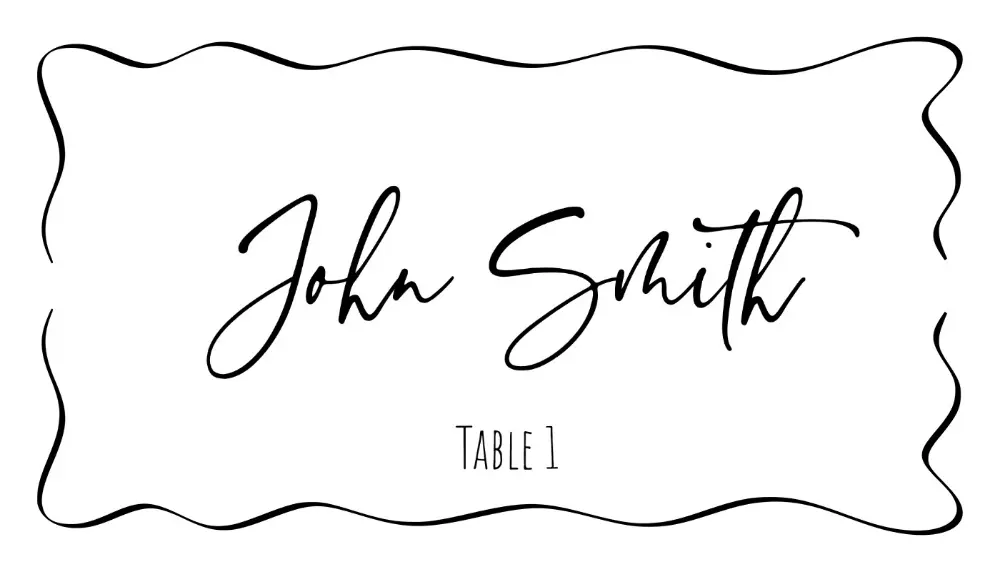
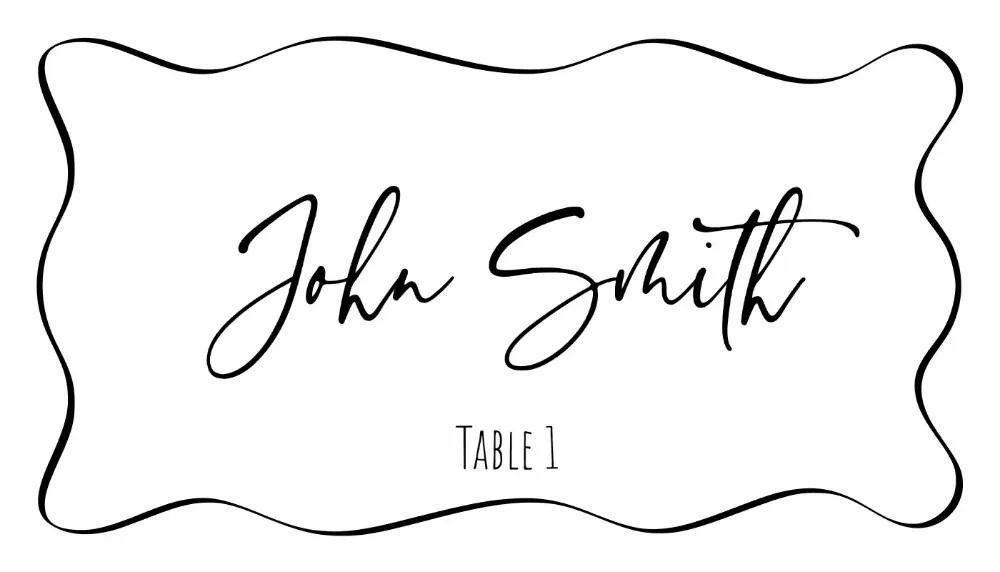
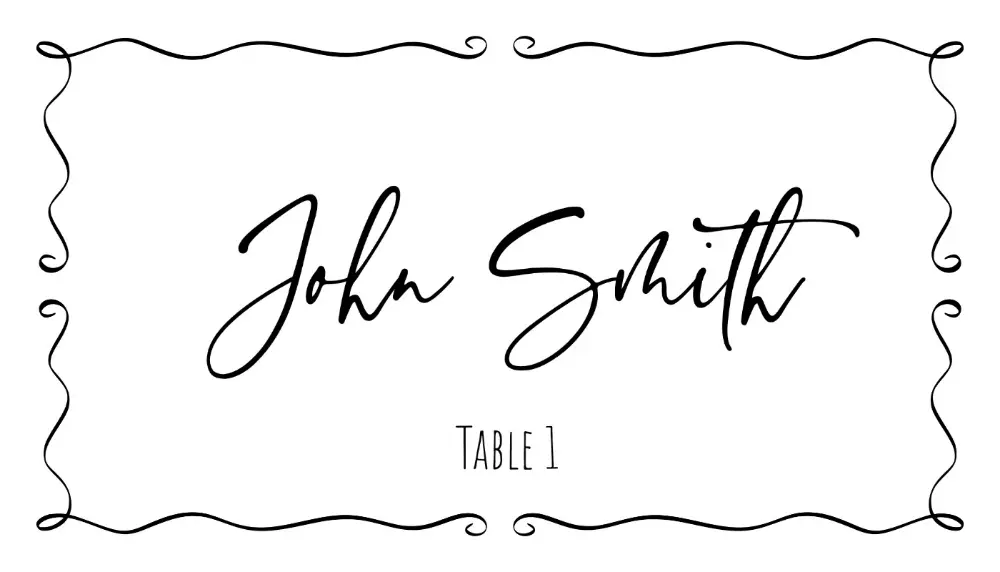
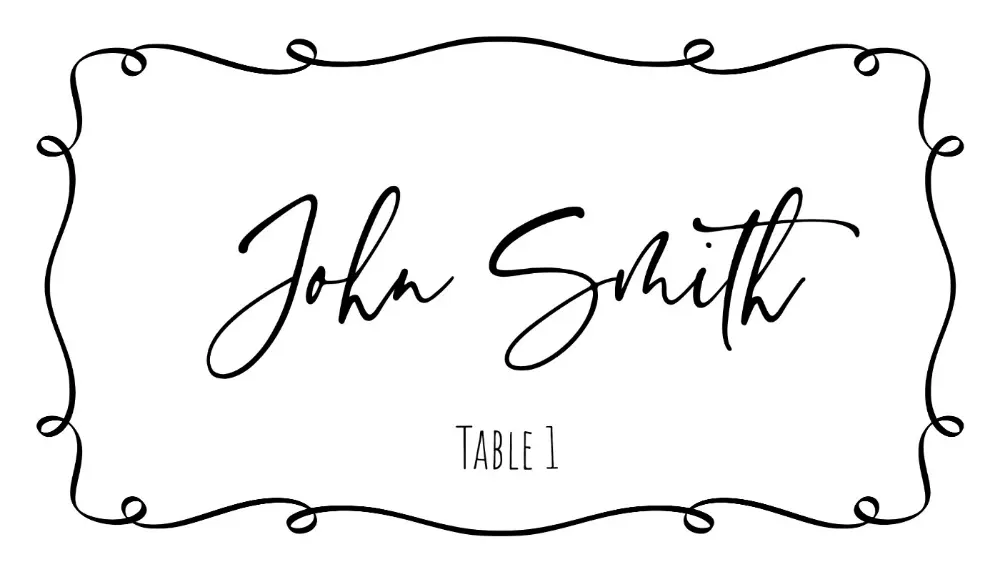
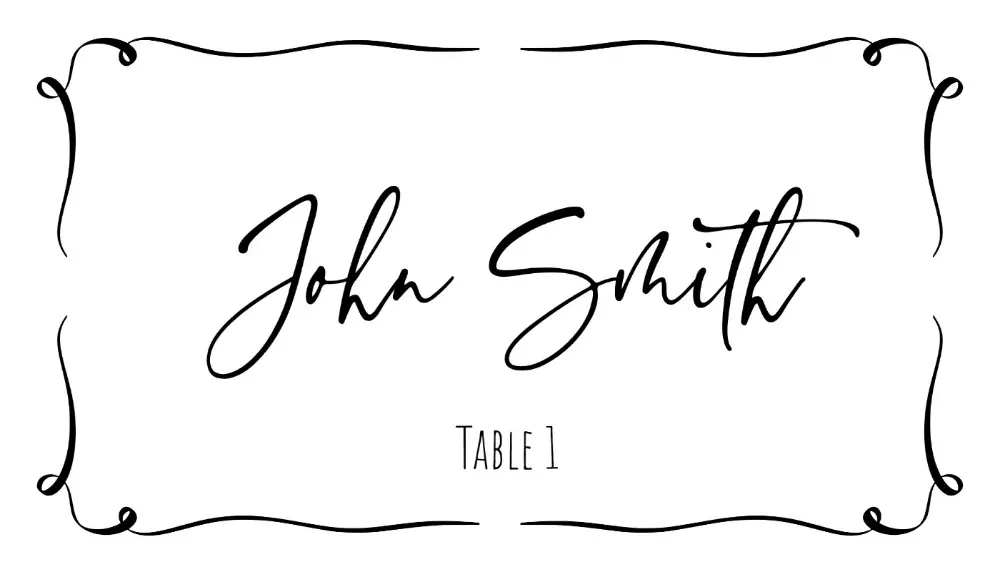
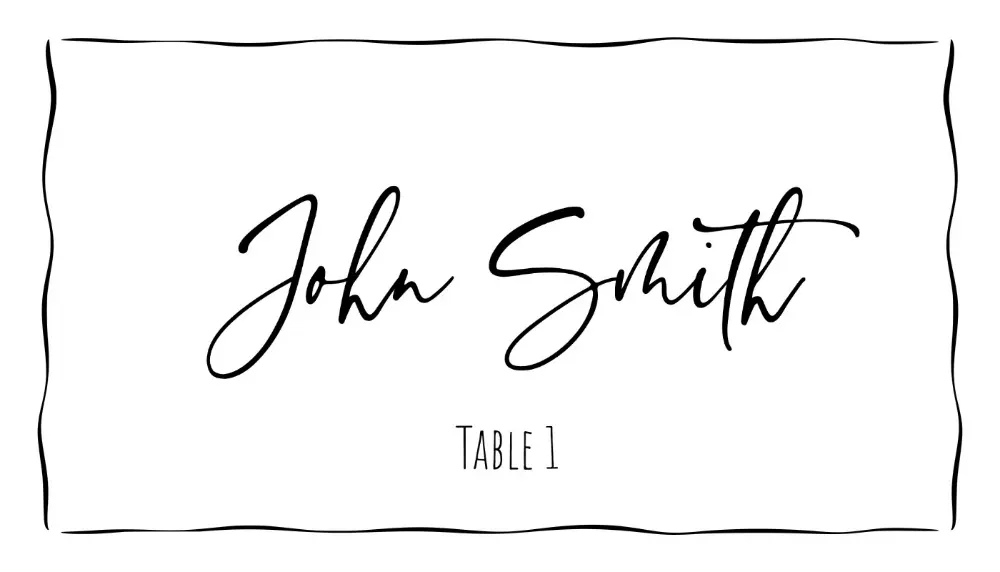
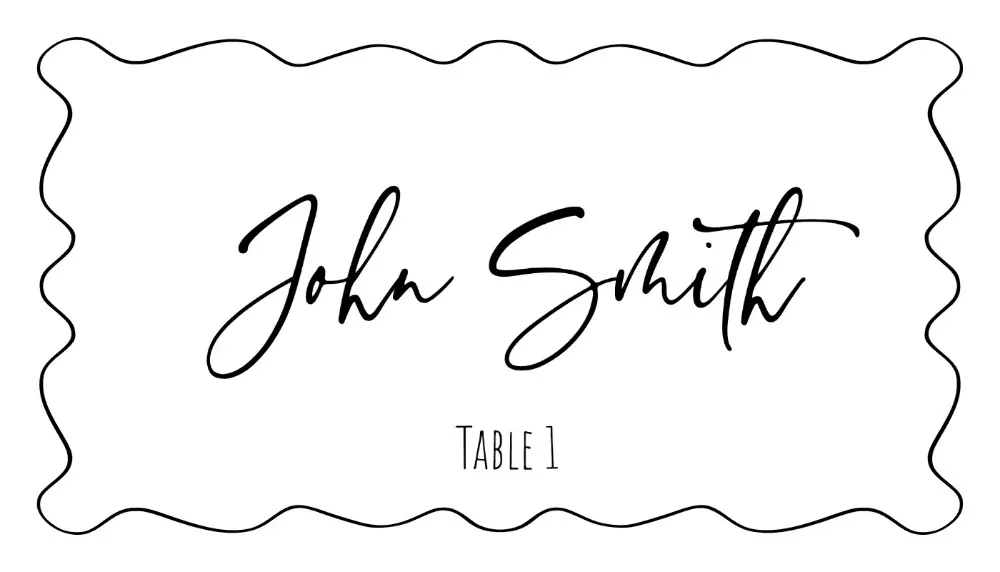
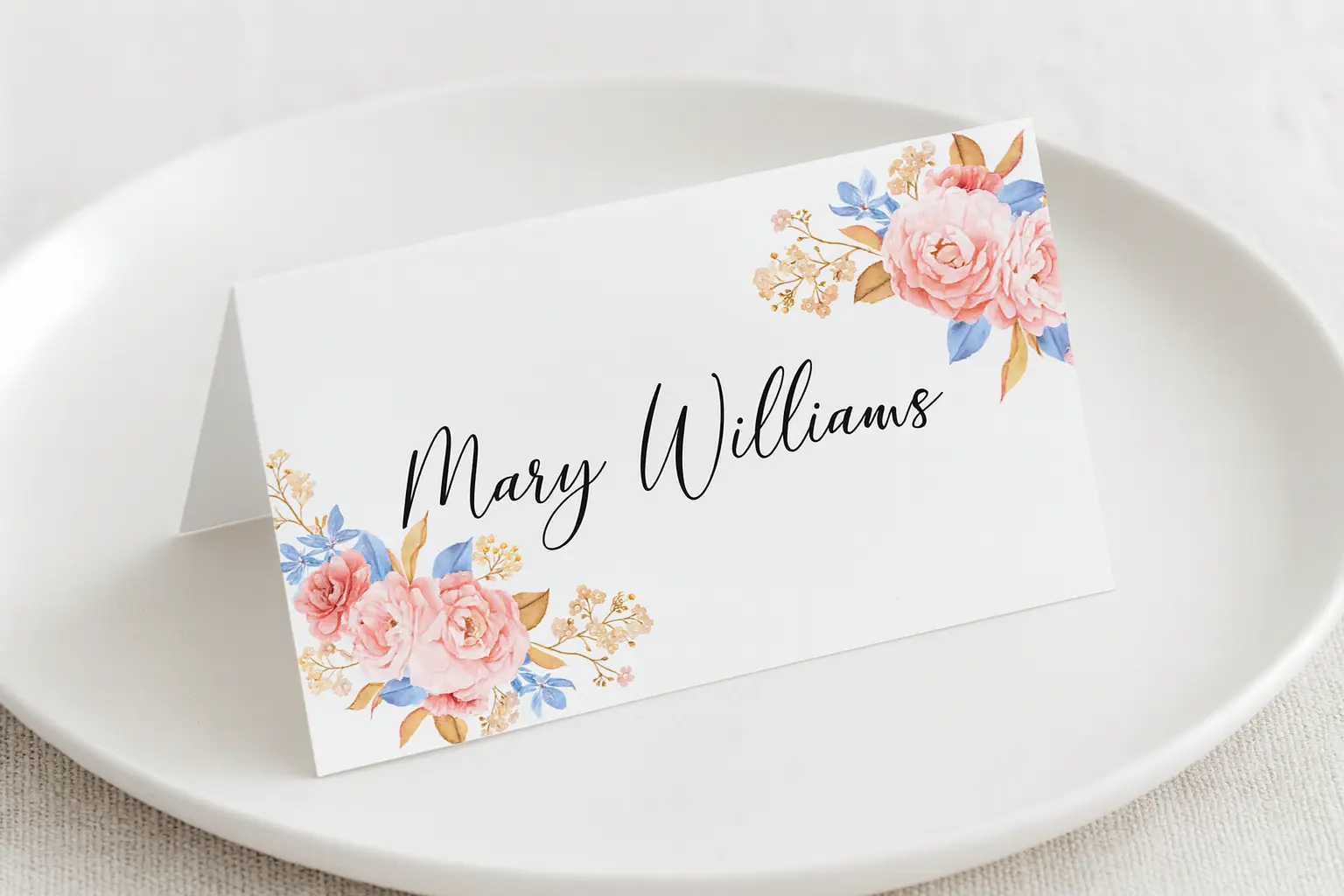
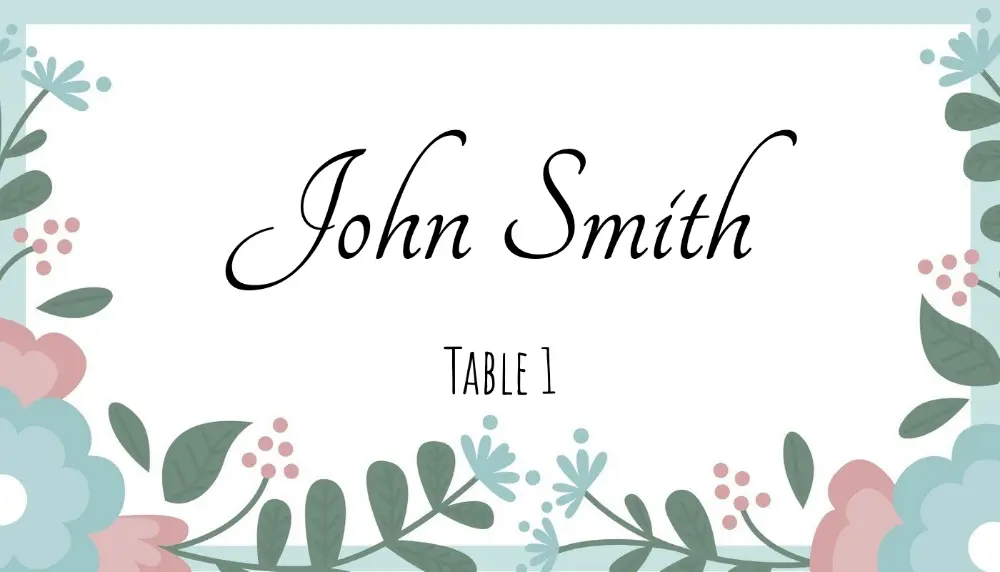
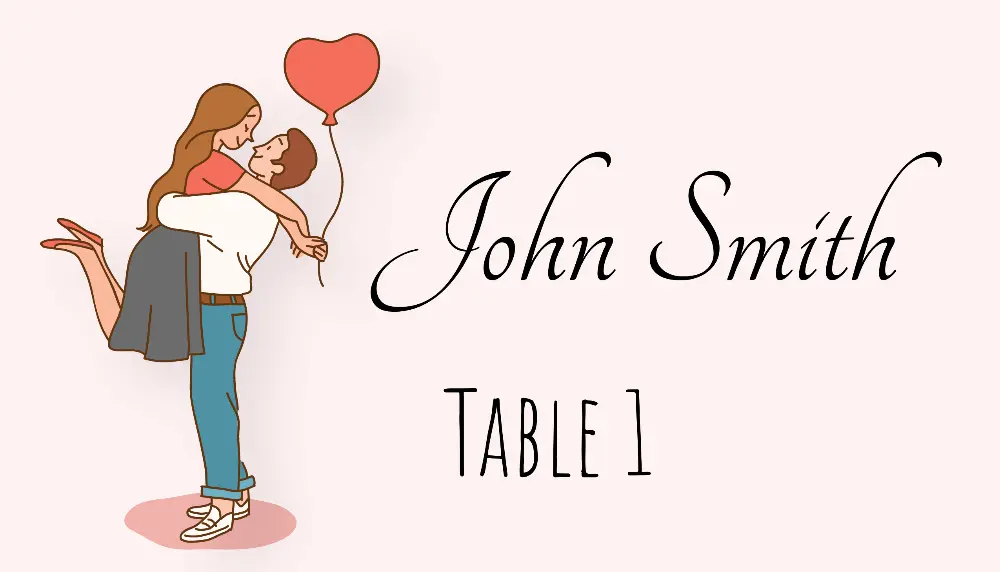
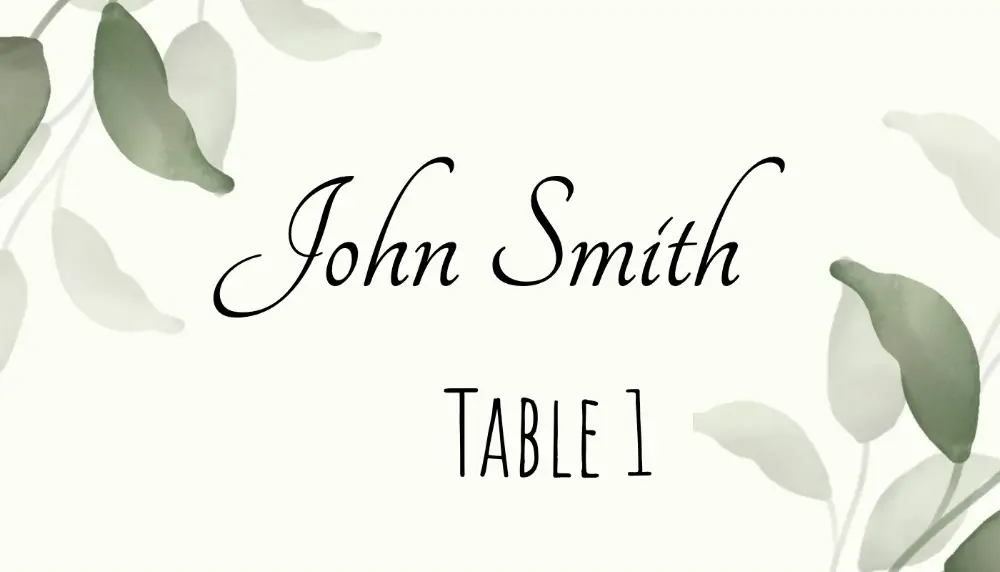
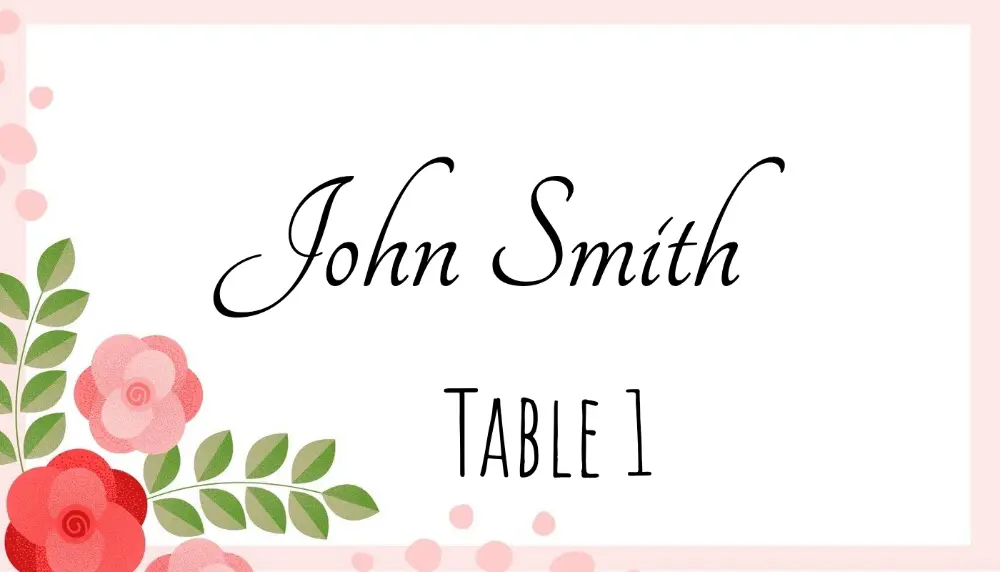
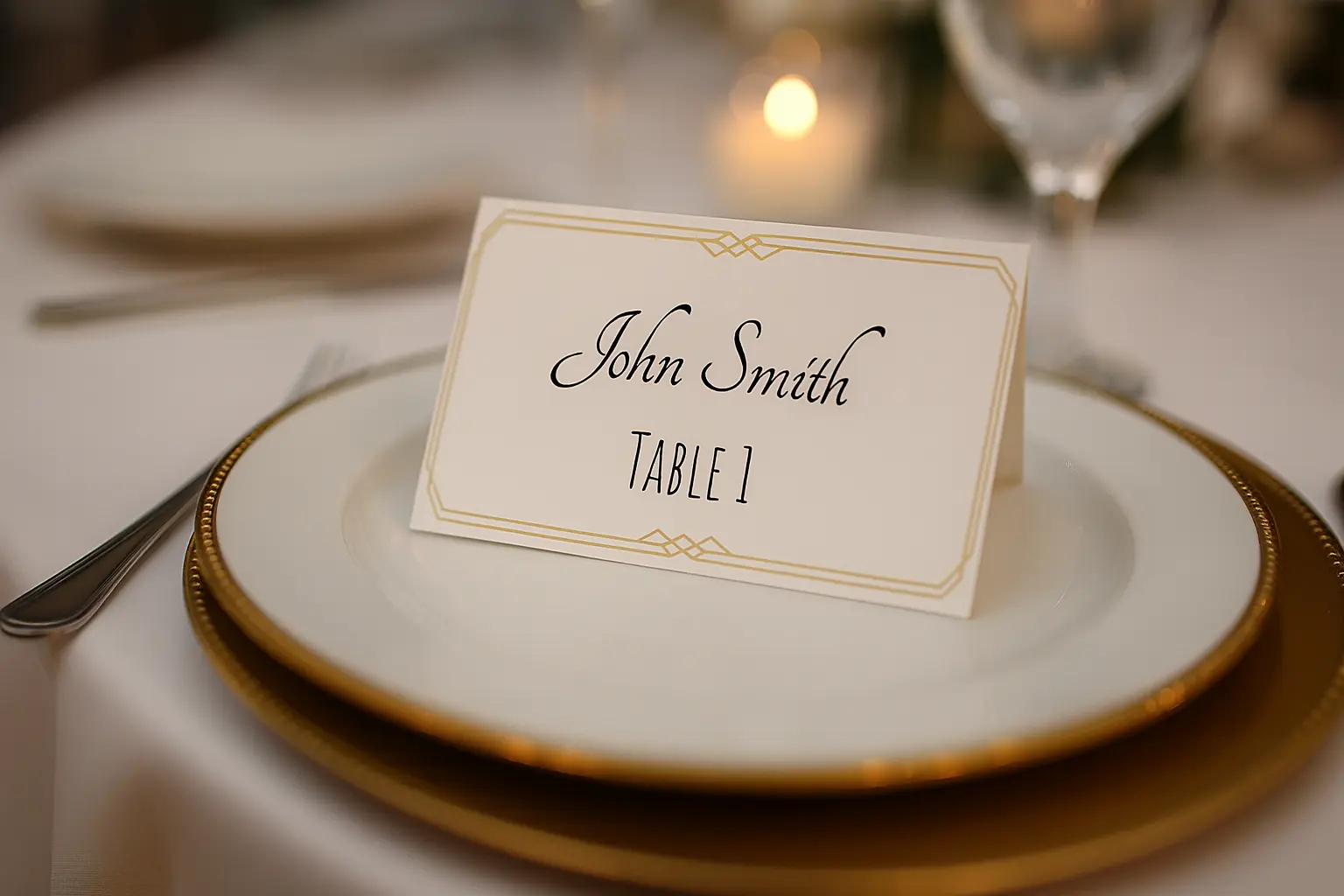
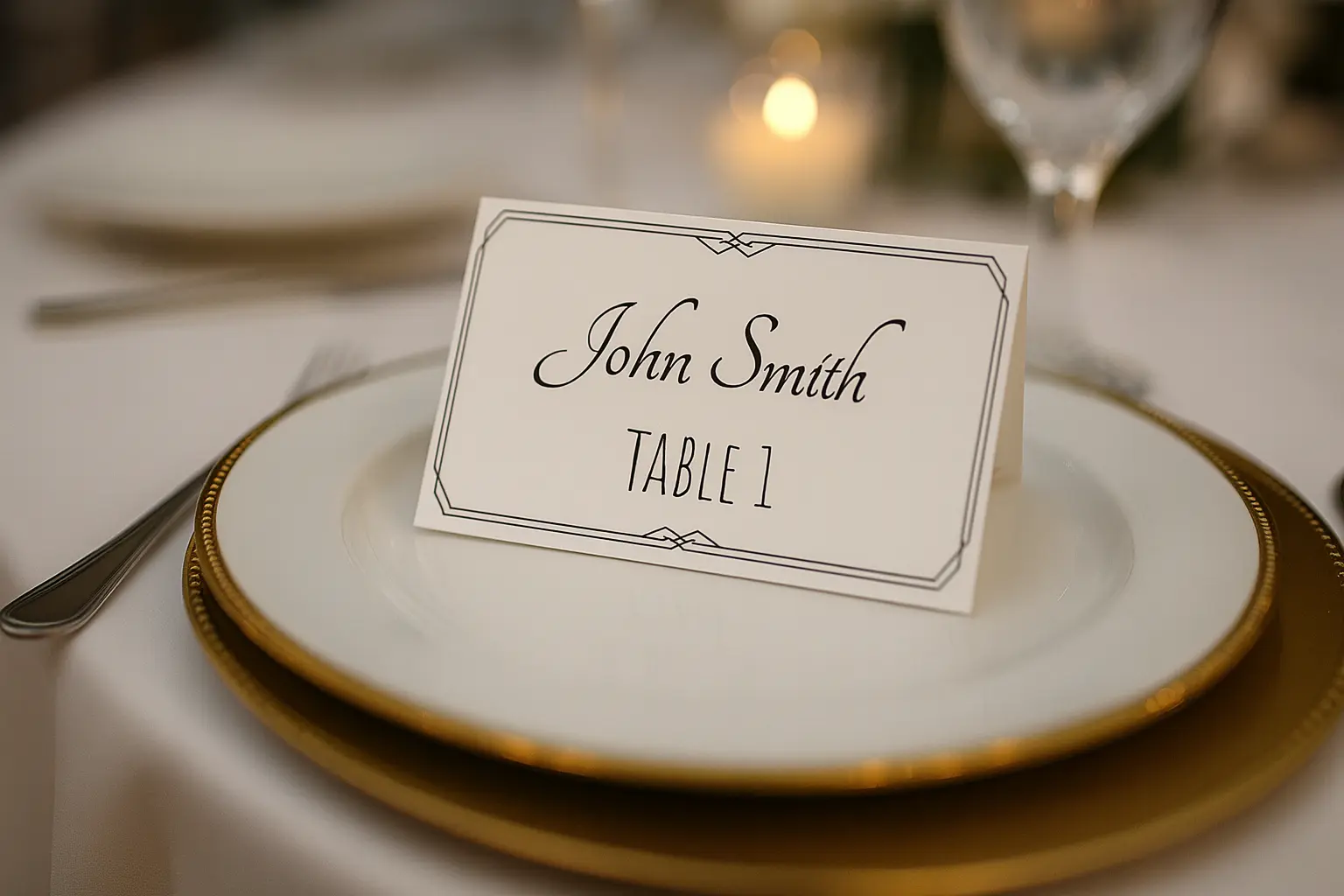
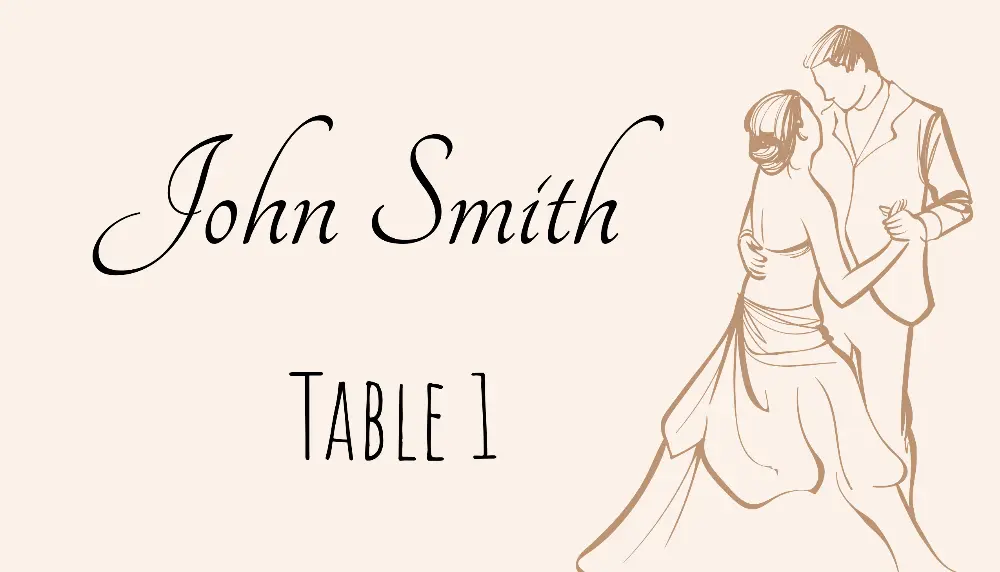
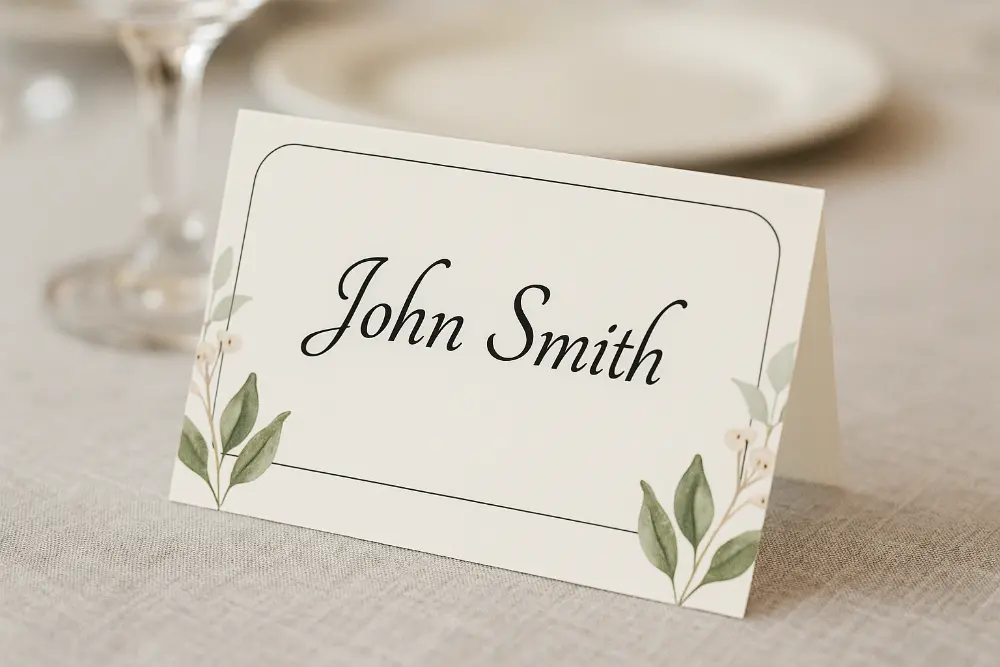
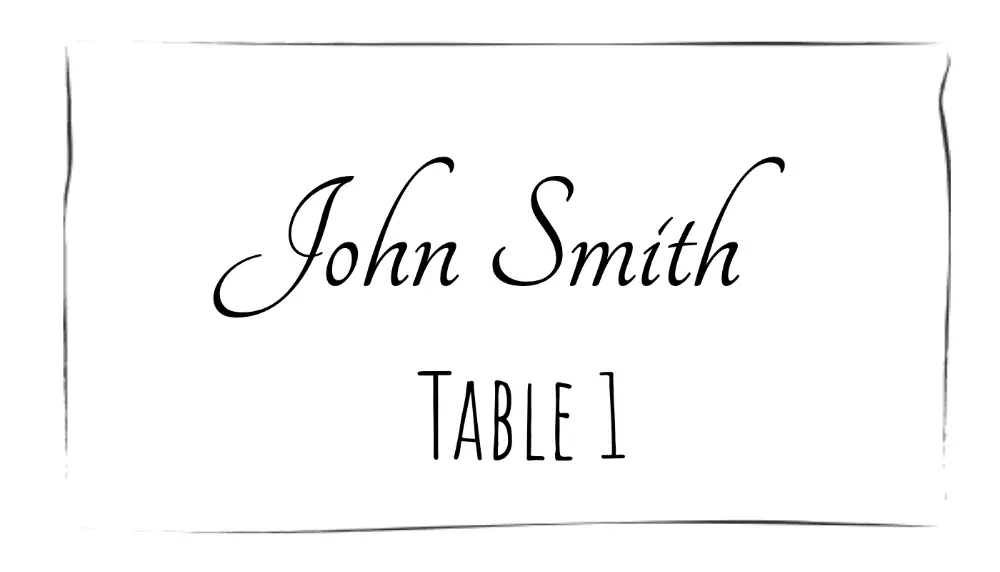
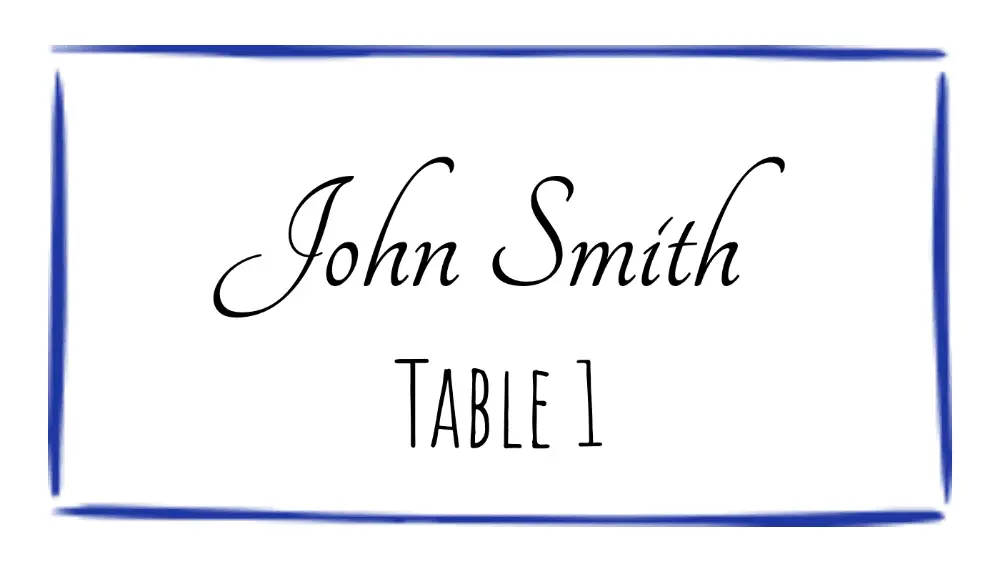
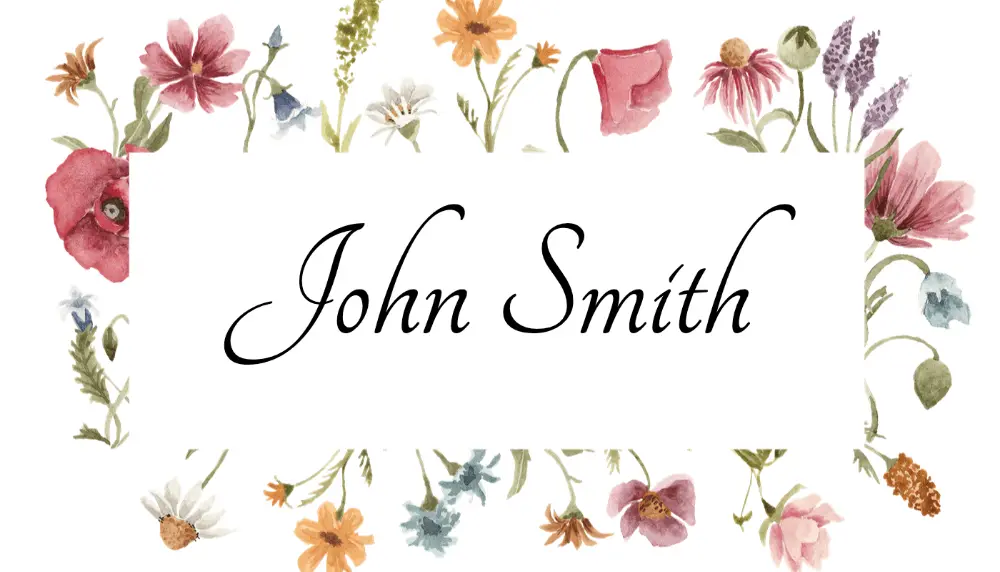
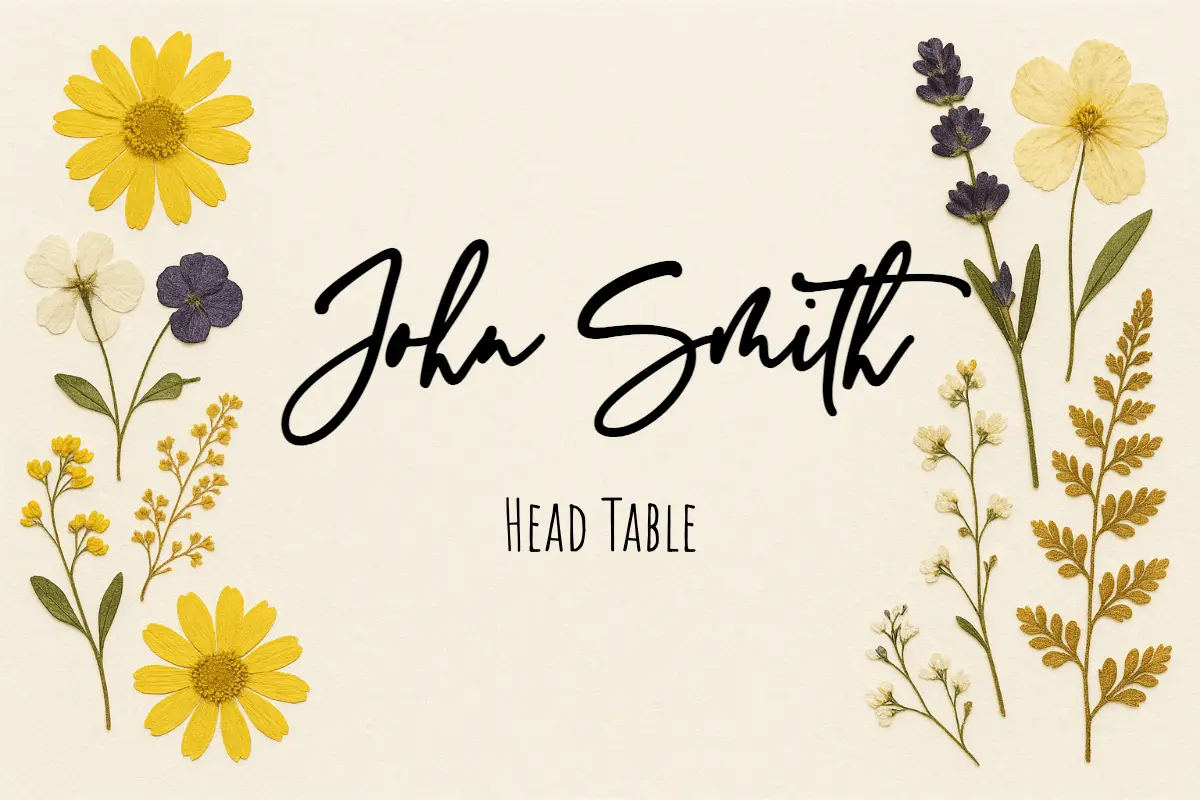
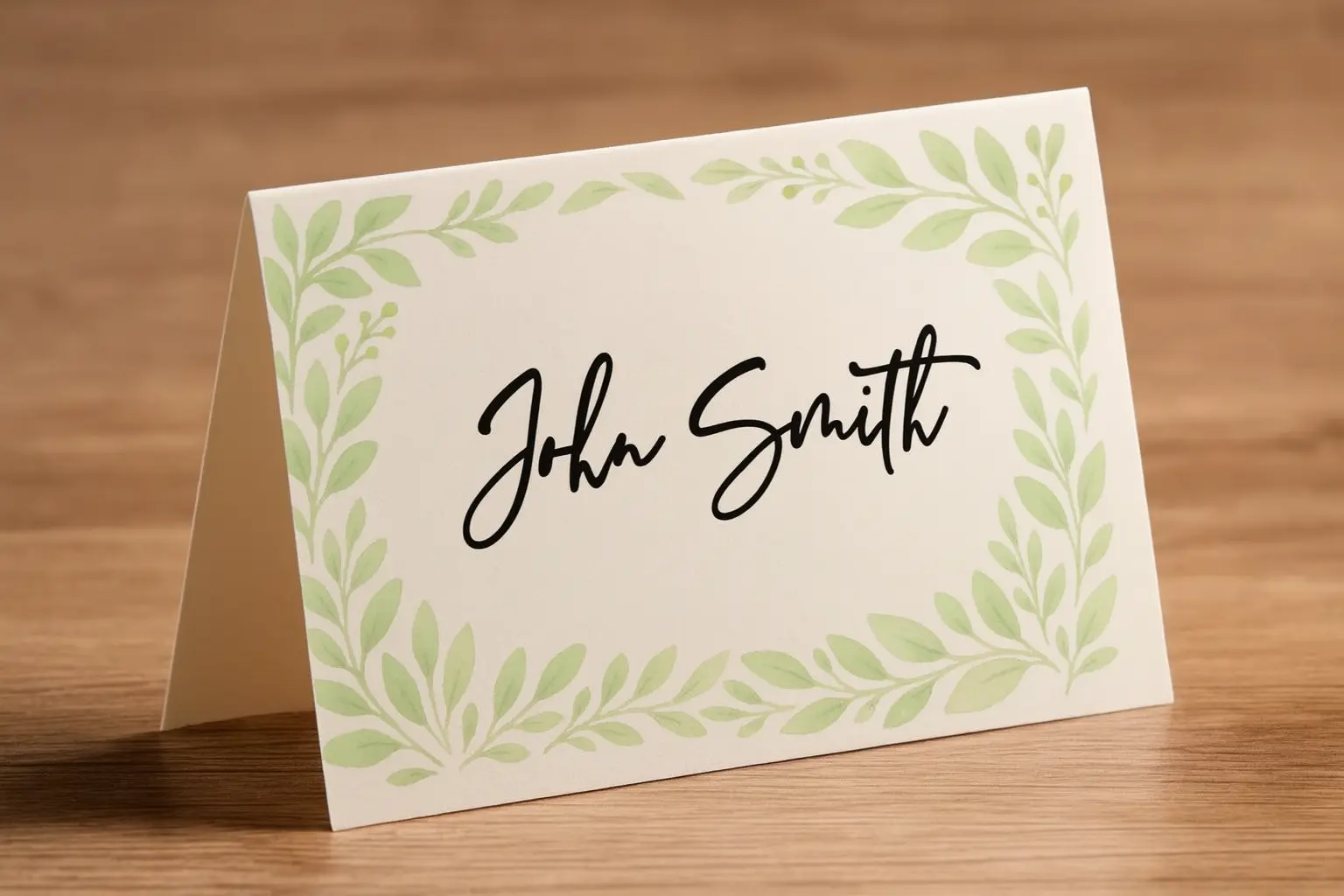
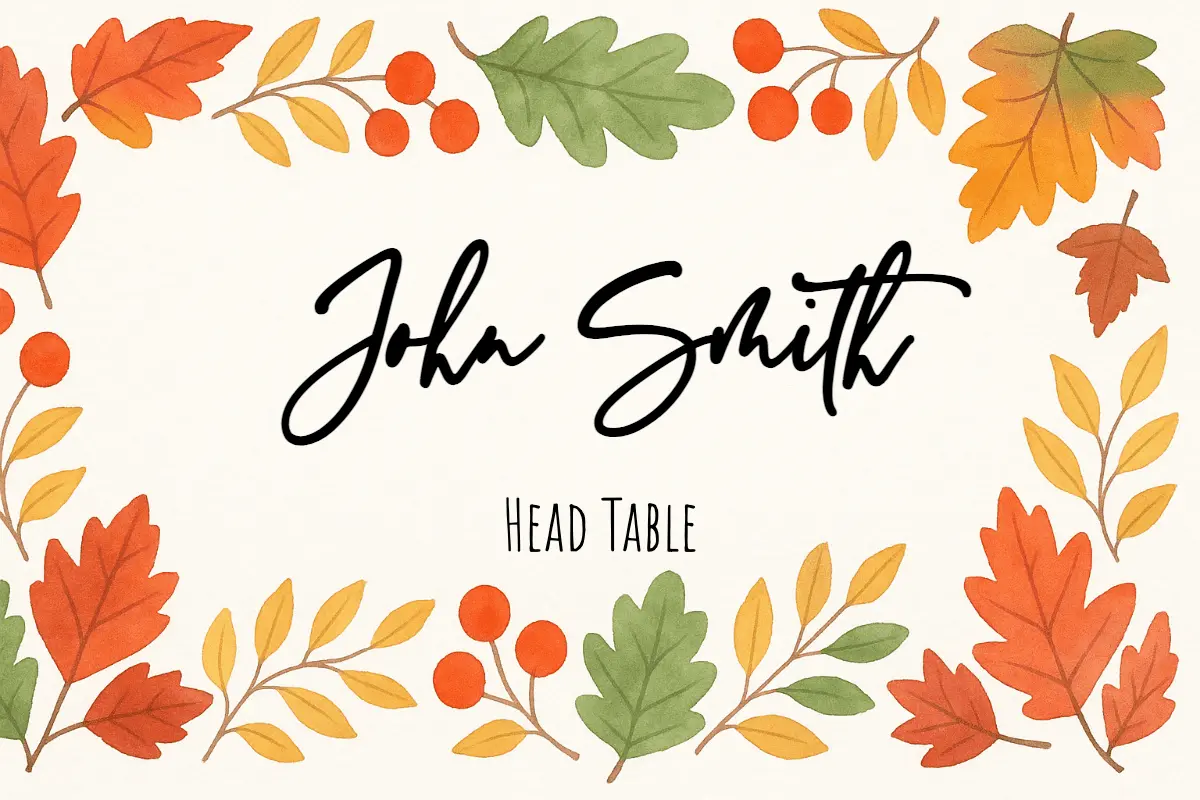
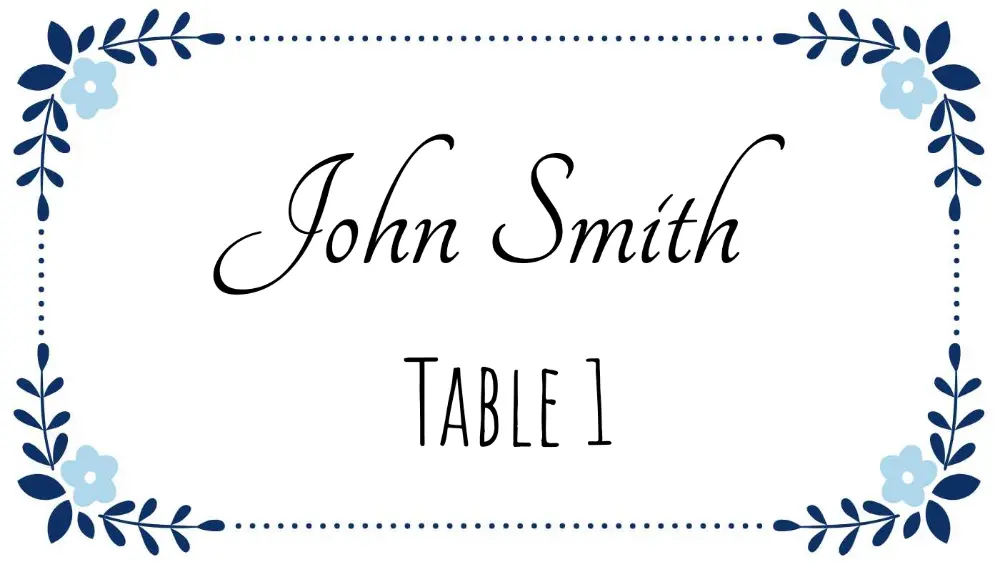

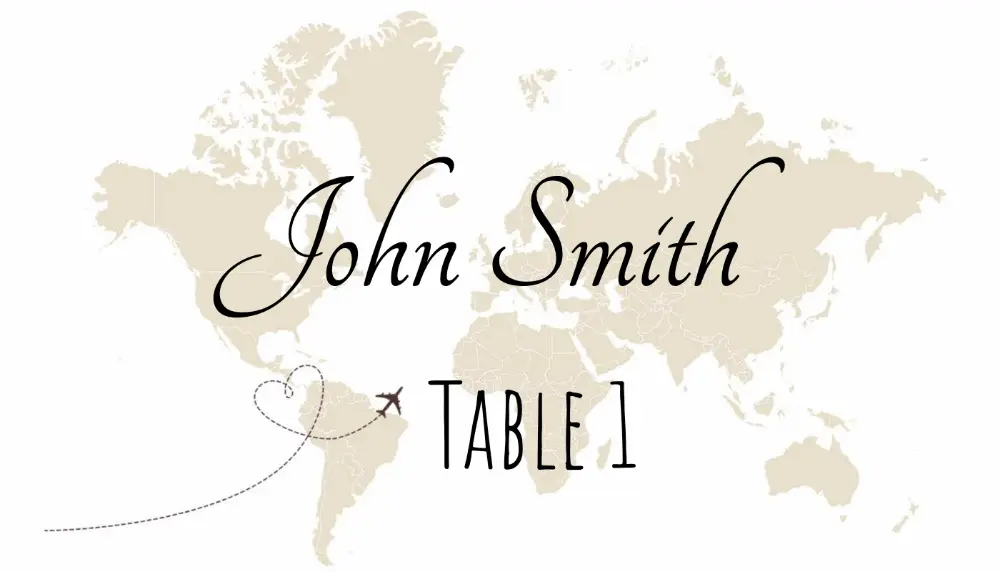
Blank Place Card PDF by Size
Need a blank file before you pick a styled design? Download a print-stable PDF by format. For print settings and cardstock tips, use the printable place cards page; for typed guest names, open the maker.
Print at 100% scale
Choose Actual Size in the print dialog so each card stays the listed dimensions.
Use cardstock
Test one sheet on plain paper, then print on cardstock your printer supports.
Need typed guest names?
Import a spreadsheet in the online place card maker and export one print-ready PDF.
Prefer Microsoft Word?
Follow the Word table and mail-merge guide for fixed-size manual layouts.
Popular Printable Place Card Templates
Open a template detail page for exact dimensions, a matching PDF download, Word setup notes, and print instructions.
Meal Choice Place Cards
Guest name, table assignment, and meal selection for catered events.
3×2 Name Place Cards
A name-first flat layout for weddings, dinners, and card holders.
2×3 Minimal Place Cards
A compact minimalist template with orientation and sizing guidance.
4×2 Place Cards
A wider card for long names, titles, table numbers, and borders.
Pure White 3×2 Cards
A clean low-ink layout for typography, handwriting, or stamps.
Wedding place card templates
Wedding place cards often need guest names, table numbers, meal choices, or matching escort-card designs. Filter the gallery by wedding style, or start with reception-focused templates.
Guest names
Keep the guest name large and readable at a real reception table.
Table numbers
Add table assignments when the card helps guests find the right seat.
Meal choices
Show meal text or icons for plated dinners and catering workflows.
Consistent print layout
Use one template for the full guest list so every card prints at the same size.
Christmas and holiday place card templates
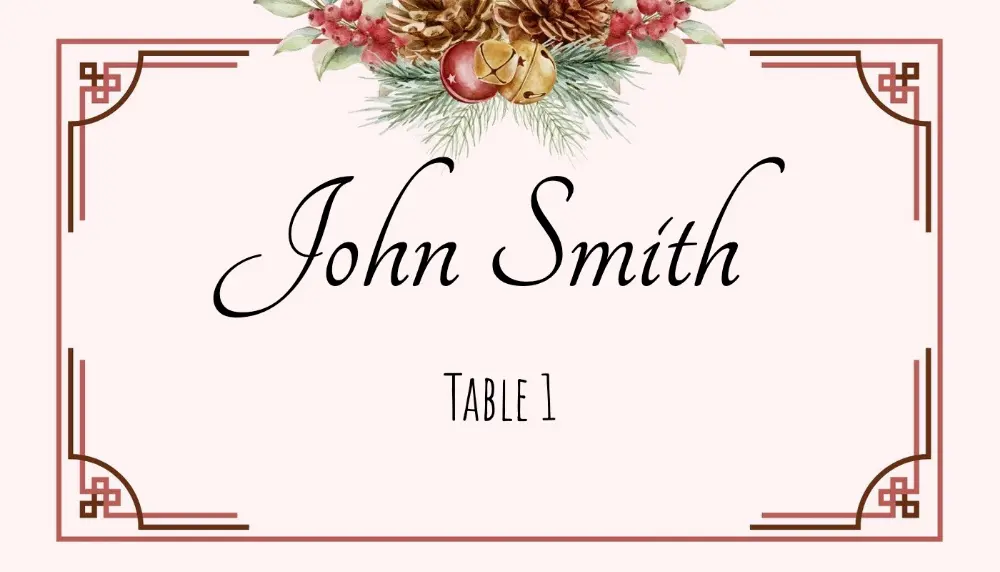
Holiday dinners and Christmas parties need readable name cards that match seasonal table decor. Filter the gallery for holiday and Christmas designs, then download a blank PDF or customize online.
Seasonal designs
Browse Christmas, holly, stocking, and winter-themed templates in the gallery.
Low-ink blank option
Print a blank 3×2 PDF and add handwritten names or stamps.
Spreadsheet guest lists
Import names from Excel or Google Sheets when the guest list is long.
Word setup available
Use the Microsoft Word guide if you prefer a document-first workflow.
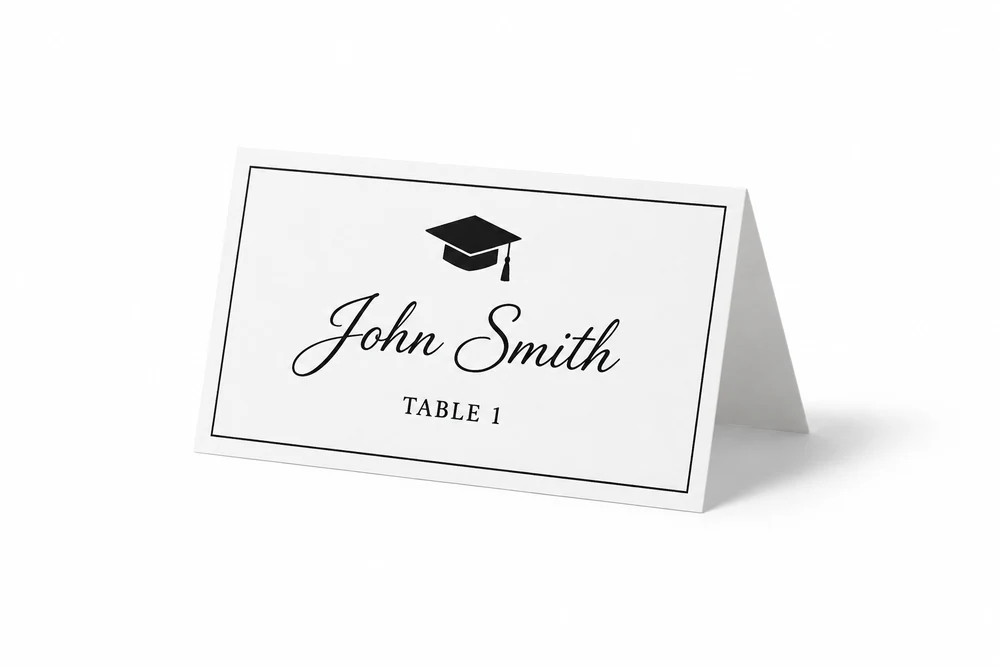
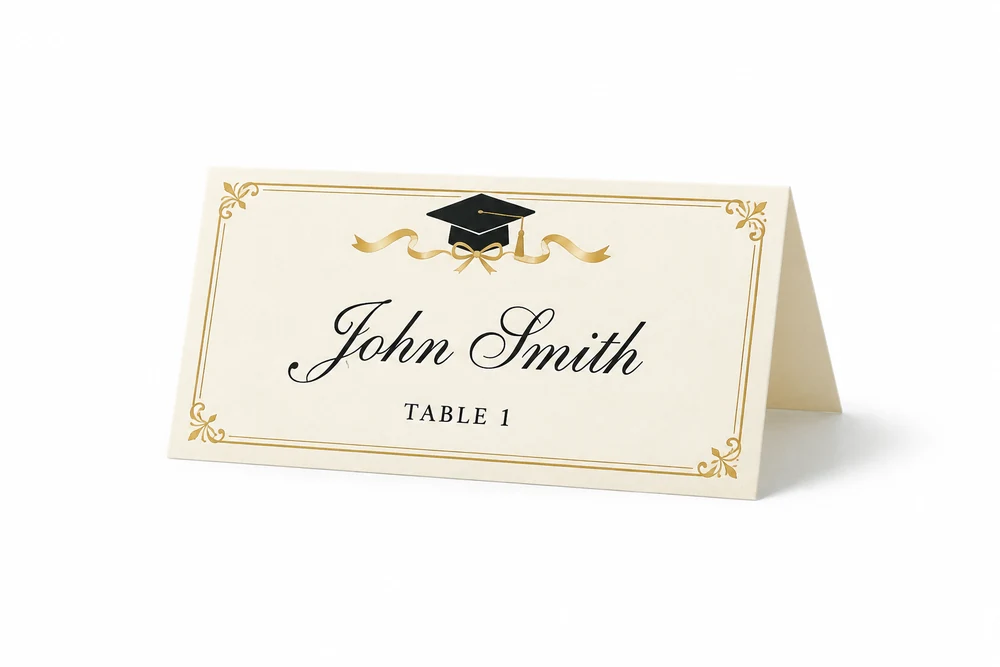
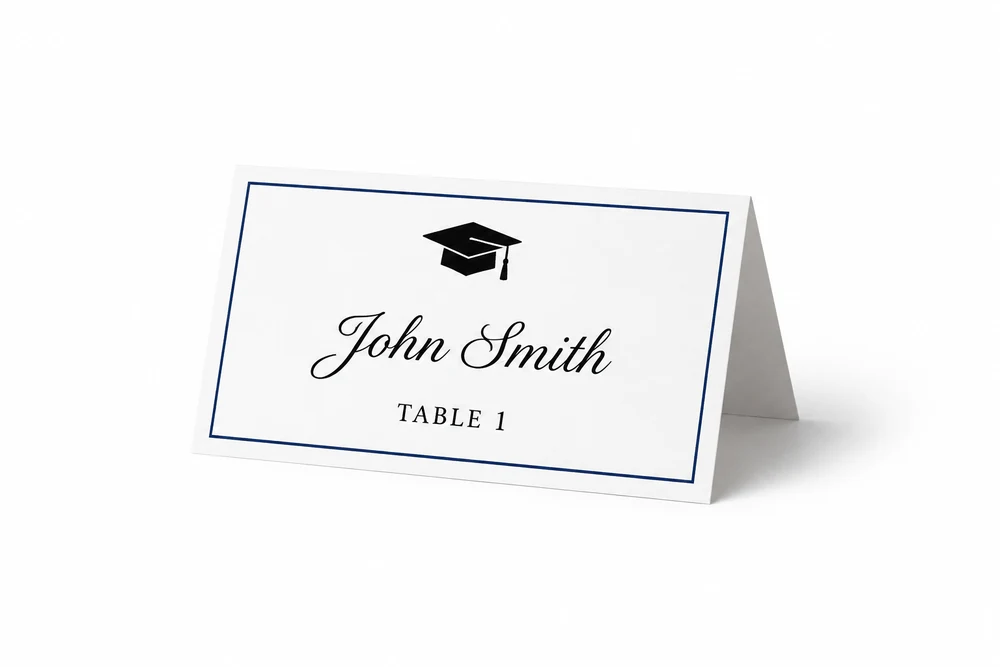
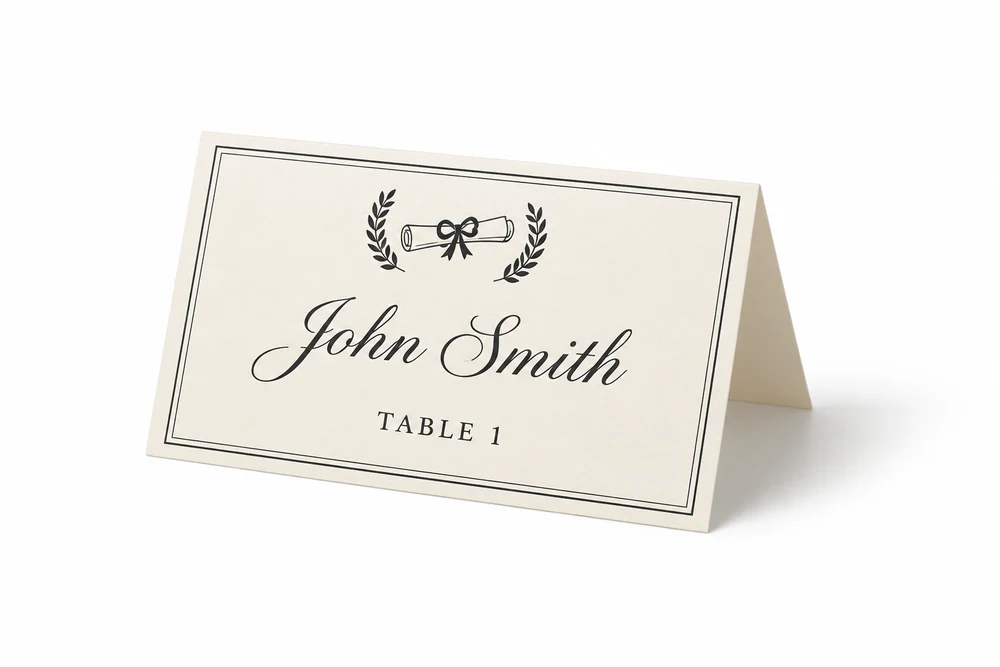
Graduation place card templates
Commencement dinners and school banquets need clear name cards with academic styling. Filter the gallery for Graduation, or open the dedicated graduation page to personalize every seat.
Mortarboard and academic styles
Cap, diploma, and banquet designs sized for standard 3.5×2 place cards.
Guest-list import
Import graduate names from Excel or Google Sheets for the full banquet table.
Filter in the gallery
Use the Graduation category above to browse every academic template.
Choose a design, then pick your workflow
Compare templates here first. After choosing a design, download a blank PDF, follow the Word setup guide, or import a guest list in the online maker.
Blank PDF downloads
Print-stable PDFs for 3×2, 4×2, 6-up, tent-fold, and meal-choice layouts.
Microsoft Word instructions
Build fixed table cells, tent cards, or mail merge documents with the Word-specific setup guide.
Online maker for guest lists
Import Excel, CSV, or Google Sheets when every card needs a different typed name.
How to print place card templates
Before printing the full batch, confirm the card size, paper stock, sheet layout, and printer scaling.
Print at 100% scale
Avoid fit-to-page settings because they can shrink the card and move cut lines.
Test one sheet first
Print a single page, check the alignment, then print the full guest list.
Use cardstock
Folded tent cards need cardstock so they stand cleanly on the table.
Match the template to the paper
Avery sheets, 6-up layouts, and custom cardstock all need different margins.
Have a guest list? Fill every name in one PDF
Import Excel, CSV, or Google Sheets into the place card maker, apply the design you picked, and export one print-ready file. Free to try with a watermarked preview.
Place card template FAQ
Quick answers before you choose a template or print a full guest list.
Need exact dimensions? Start with the place card size guide before printing.
Still have questions?
If you couldn't find the answer you're looking for, please feel free to ask us!